Questions and answers about Purekeys hygiene keyboards and mice
On this page, we answer frequently asked questions about Purekeys keyboards, hygiene mice, cleaning, disinfection, areas of application, variants and ordering. These questions are designed to help you better identify the right solution for your practice, clinic, laboratory, dental practice, care setting, industrial environment or other hygiene-critical workplaces.
If you would like to assess a specific workplace situation, we would be happy to assist you personally in selecting suitable models.
Cleaning and Disinfection
Before cleaning, depending on the model, press the CLEAN key / KeyLock key in the top right-hand corner of the keyboard. This puts the keyboard into cleaning mode and temporarily disables key inputs. This allows the surface to be cleaned and disinfected without accidentally triggering any inputs on the computer whilst doing so.
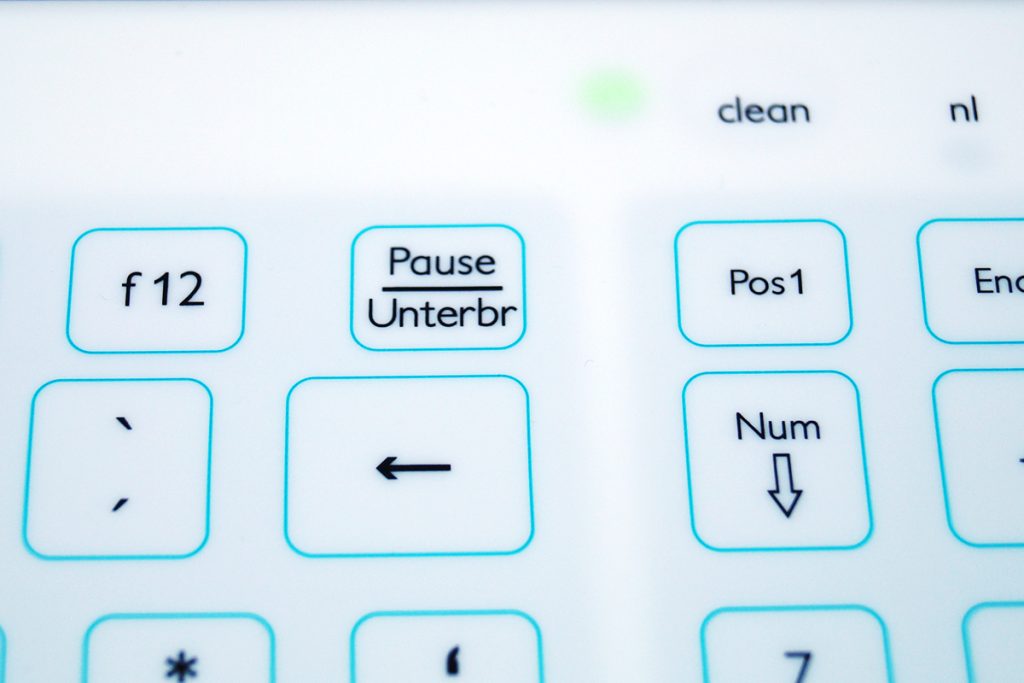
The active cleaning mode is indicated by the green LED. Once cleaning is complete, the keyboard can be reactivated by pressing the CLEAN key again. Alternatively, the key functions will be automatically reactivated after 60 seconds if no key is pressed.
Disinfecting Purekeys keyboards
For cleaning, we recommend wipe disinfection with a suitable cloth and a disinfectant appropriate for the area of use suitable cleaning agent or disinfectant. Spray disinfection may also be carried out. When doing so, please follow the guidelines set out in your hygiene plan and the instructions for the disinfectant being used.
For the Purekeys hygiene mice (models 30065, 50065, 50265, 50075 and 50275), a pause function can be activated before cleaning. To do this, press both mouse buttons simultaneously for 6 seconds. This puts the mouse into cleaning mode and temporarily disables input.
The surface can then be cleaned, sprayed with disinfectant or wiped down with disinfectant without accidentally triggering any clicks or movements on the computer whilst doing so.
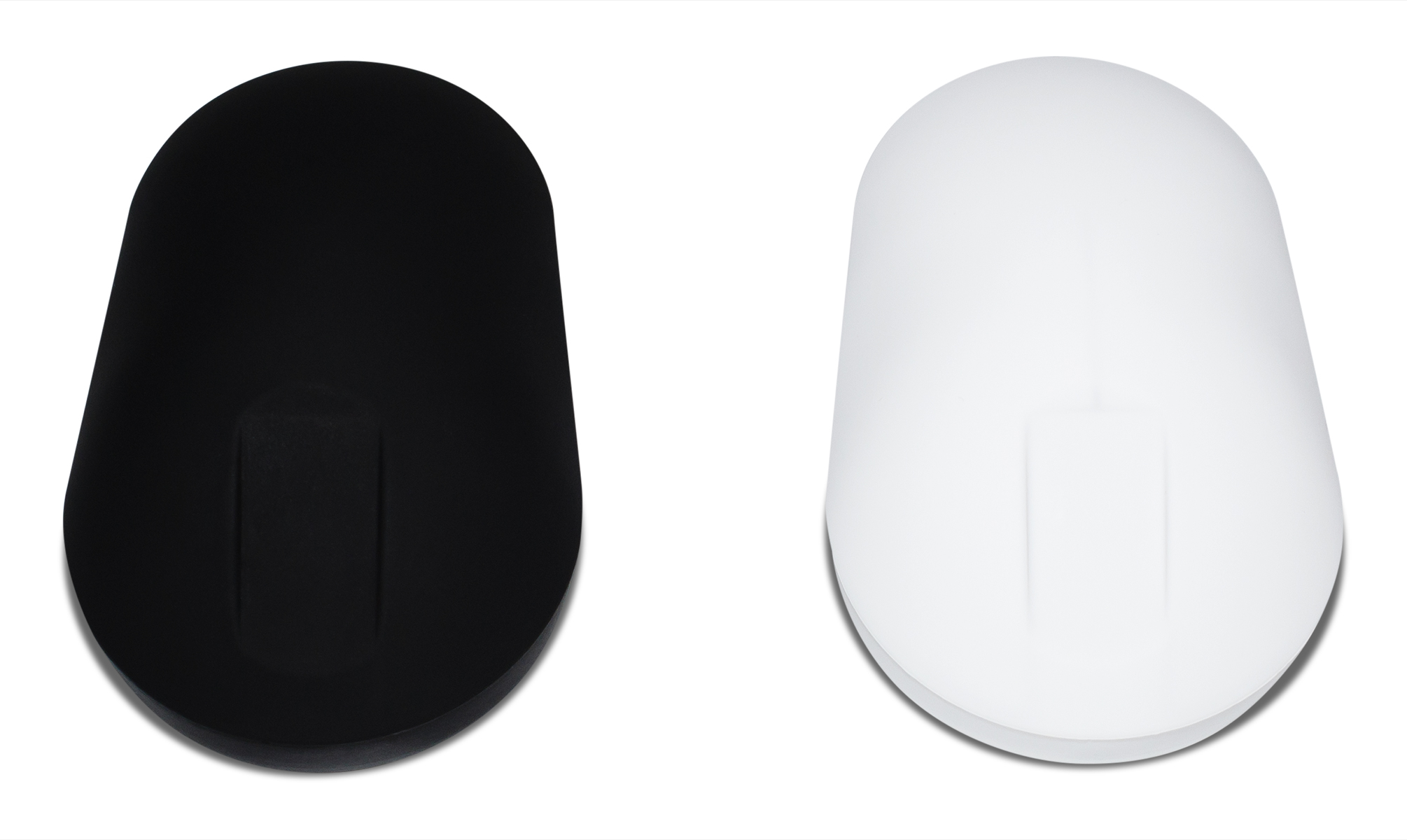
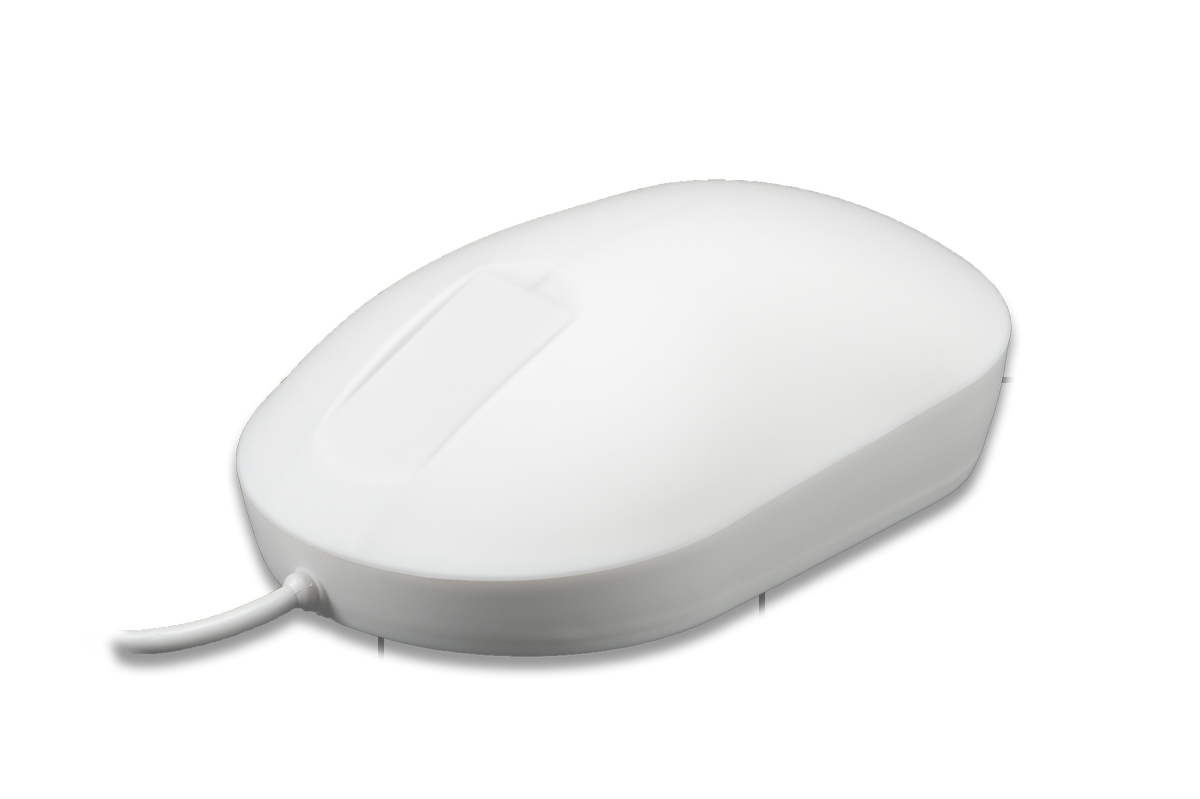
Nach der Reinigung werden die Tastenfunktionen wieder freigegeben, entweder durch erneutes Drücken beider Maustasten für 4 Sekunden oder automatisch 30 Sekunden nach der letzten Eingabe (Tastendruck oder Mausbewegung).
The older Purekeys mouse models, such as the 40065, 40265, 40075 or 40275, do not have a pause function. They can also be cleaned in the same way, but the inputs cannot be automatically deactivated during this process. You should therefore take particular care with these models to ensure that no unintended inputs are triggered whilst cleaning.
Since 2025, the Purekeys hygiene mice have been switched to Series 5: 30065, 50065, 50265, 50075 and 50275. The previous model, 40265, is still available whilst stocks last.
Disinfecting the Purekeys mouse
For cleaning, we recommend wipe disinfection with a suitable cloth and a disinfectant appropriate for the area of use suitable cleaning agent or disinfectant. Spray disinfection may also be carried out. When doing so, please follow the guidelines set out in your hygiene plan and the instructions for the disinfectant being used.
How often keyboards and mice should be cleaned or disinfected depends on the specific area of use and the facility’s hygiene plan. In hygiene-critical work areas, the key factors are how the workstation is used, whether several people use the same input devices, and whether there is direct contact with patients, samples, treatment areas or sensitive work processes.
Purekeys keyboards and hygiene mice are designed to be cleaned and disinfected regularly and frequently on a daily basis for many years. In areas where patients are treated, cleaning may be carried out after each patient treatment and may be included in the hygiene plan. In other workplaces, cleaning at fixed intervals, when visible soiling is present, after a change of user, or at the end of the working day may be sufficient.
It is also important not to use abrasive materials such as brushes or coarse sponges for cleaning. This is not necessary anyway, as the surfaces can be cleaned thoroughly using, for example, soft cloths or wipes soaked in disinfectant.
It is important to note that keyboards and mice should not be regarded as “ordinary accessories”, but as frequently touched surfaces. They should therefore be included in existing cleaning and disinfection routines. The specific frequency should always be tailored to the particular working environment, the risk of infection and internal guidelines.
Purekeys keyboards and hygiene mice are designed for regular cleaning and disinfection in professional settings. The surface made of a flat silicone matrix is resistant to standard cleaning and disinfectant products used in settings such as doctors’ surgeries, dental practices, hospitals, laboratories, cleanrooms, food production facilities and similar hygienic work environments.
Suitable disinfectants may be used, such as those intended for other hygiene-relevant surfaces in the relevant work area. These include disinfectants with an alcohol content of over 70 per cent, those containing ammonia, fungicides or sporicides, or cleaners containing hydrogen peroxide. It is important that the product is suitable for the intended use and is applied in accordance with the disinfectant manufacturer’s instructions.
Cleaning should preferably be carried out using wipe disinfection, which is also in line with current safety recommendations in many disinfection areas within medical companies, hospitals, doctors’ surgeries and food production facilities. This involves wiping the surface with a suitable cloth soaked in disinfectant. This allows the smooth surface to be cleaned in a controlled manner, without unnecessarily releasing disinfectant into the air as an aerosol, which could potentially be inhaled.
The following should be avoided: Cleaning procedures using abrasive sponges, brushes or similar coarse cleaning materials that could damage the surface structures.
Please also always follow the guidelines set out in your hygiene plan.
It is not only crucial that the keyboard and mouse can be disinfected, but also that cleaning is carried out using the products and methods authorised for the relevant work area.
Technical background: Surface disinfection – necessary or not?
Every surface in healthcare settings requires hygiene measures. Keyboards and computer mice are no exception, particularly as they are touched much more frequently than many other surfaces, such as tables or trolleys. Furthermore, surfaces can become contaminated – without any direct contact whatsoever – by aerosols potentially containing germs that have otherwise entered the air in the room.
Many specialist media outlets report that surface disinfection is becoming a “fundamental part of the hygiene chain” (Article in the journal ZWP)
A General guidelines for disinfectants The VAH list sets out those that are authorised for use in medical settings. This is described on the website of the German Society for Hygiene and Microbiology (DGHM) as “List of chemical methods for prophylactic disinfection and for hygienic handwashing, which have been assessed by the Disinfectants Commission of the Association for Applied Hygiene (VAH) e.V. in collaboration with the DGHM, DGKH, GfV, GHUP and BVÖGD, on the basis of the requirements and methods for VAH certification of chemical disinfectants, and found to be effective.”
Here you will find the VAH list and information on its use.
Wipe disinfection
For Purekeys keyboards and hygiene mice, we generally recommend wipe disinfection. This is the method of disinfection recommended by many professional bodies.
In this process, the closed surface made of a flat silicone matrix is wiped down with a cloth soaked in a suitable cleaning agent or disinfectant solution. Please ensure you follow the guidelines set out in your hygiene plan and the instructions for the disinfectant being used.
Spray disinfection
All Purekeys devices can be completely disinfected by spraying. This involves using a suitable cleaning agent or disinfectant, which is sprayed onto the surfaces and either wiped off once the contact time has elapsed, or left until it has dried. Please ensure you follow the guidelines set out in your hygiene plan and the instructions for the disinfectant being used.
Spray disinfection is not the preferred method for Purekeys surfaces. When spraying, there is a risk that aerosol containing the disinfectant may be inhaled or that surfaces may not be wetted evenly. For this reason, wipe disinfection is generally preferred for easily accessible surfaces. This is also in line with the official recommendations of most professional bodies.
Disinfection procedure
Before cleaning, you can press the CLEAN key on Purekeys keyboards. This temporarily disables key inputs. On the Purekeys hygiene mouse (models 30065, 50075, 50275, 50065 and 50265), a pause function can also be activated. This allows the keyboard and mouse to be cleaned without accidentally triggering any inputs on the computer whilst cleaning. After 60 seconds, or when the CLEAN key is pressed again, the keys are reactivated.
Purekeys keyboards and hygiene mice are designed for work environments where input devices need to be cleaned and disinfected regularly. Frequent wiping and disinfection throughout the day are therefore part of their intended use.
A high cleaning frequency per working day is also generally the typical scenario for Purekeys.

The key factor here is correct use:
Cleaning can be carried out as wipe disinfection or spray disinfection using suitable and, for the relevant work area, approved disinfectants and cleaning materials. Please follow the instructions provided by the disinfectant manufacturer, observe the contact times and adhere to your organisation’s hygiene plan.
It should be noted that The regular use of abrasive cleaning methods, such as coarse sponges or brushes, is not recommended and may damage the surfaces over time.
As with all surfaces that are frequently disinfected, the keyboard and mouse should be checked regularly for visible damage, significant wear and tear or changes in the material. As long as the surface remains intact, the smooth surface made of a flat silicone matrix can be easily wiped clean and is suitable for regular disinfection.
Operation and everyday use
Purekeys is not just a simple silicone cover that is placed over a standard keyboard. Purekeys is a complete, fully functional, Special-purpose keyboard for work areas where hygiene is a priority. The keyboard housing, electronics and surface made of a flat silicone matrix are all in-house developments and are structurally designed to work in harmony with one another.
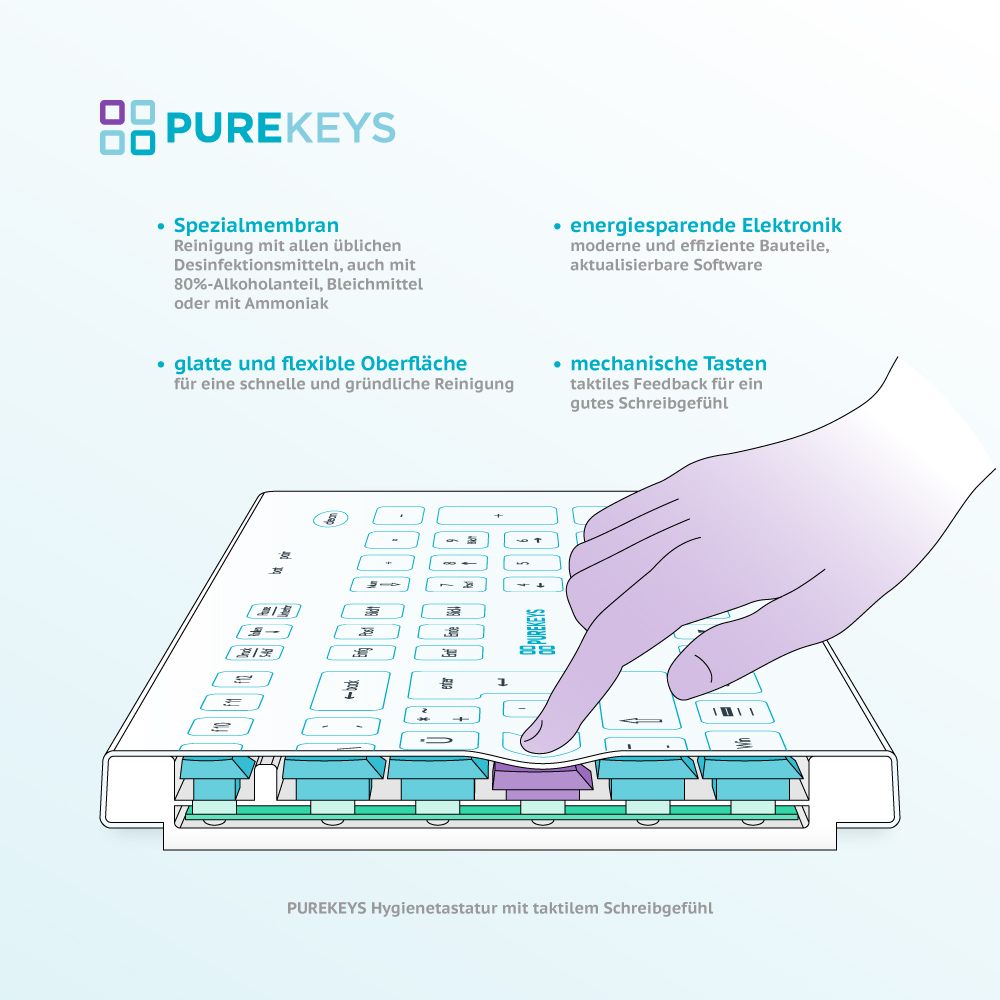
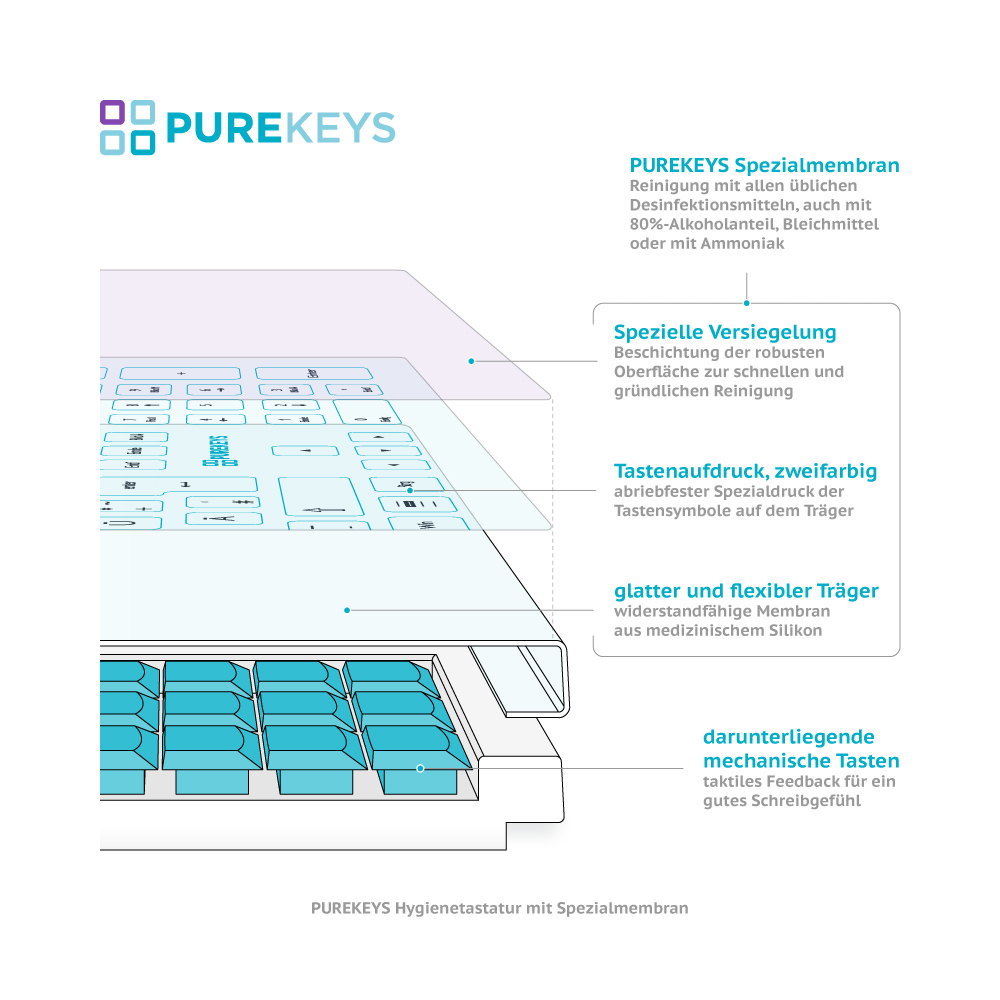
The result is a complete input device designed for hygiene-critical use, with specialised functions and a sealed, smooth surface that can be cleaned and disinfected regularly without loose covers slipping out of place or gaps forming, as is the case with a conventional keyboard. The casing, made from a specially developed flat silicone matrix, fits so precisely that it achieves IP66 water resistance.
The Purekeys hygiene mice These are fully-fledged input devices, not just standard mice with protective covers. They have been designed for use in areas where the mouse and keyboard, as frequently touched surfaces, need to be included in the cleaning process.
The difference in everyday use is Important: A keyboard cover on its own can make cleaning easier, but it does not automatically replace an input device designed with hygiene, ease of use and regular disinfection in mind.
Simple keyboard covers for retrofitting often do not fit snugly, can slip out of place and do not provide the same feel as the original keys. Even simple plastic covers do not stand up to closer scrutiny in terms of hygiene. Because they sit loosely on the keycaps, these surfaces are difficult to wipe clean and often tolerate disinfectants for only a few uses before the surfaces become damaged and provide porous breeding grounds for germs. In the hectic day-to-day working environment, they are also replaced far too infrequently.
All of these Workarounds lack certain functions, to pause input. Furthermore, the remaining components, such as the back of the keyboard and the cable, are not designed for disinfection. This makes it virtually impossible for the user team to permanently resolve the hygiene issue posed by computer input devices in a professional working environment.
Purekeys keyboards have tactile keys. This means that the keys can be pressed with a distinct tactile sensation and provide clear feedback whilst typing. This sets them apart from very flat membrane keyboards or purely touch-based surfaces made of glass, acrylic or plastic, which usually offer hardly any tactile feedback.
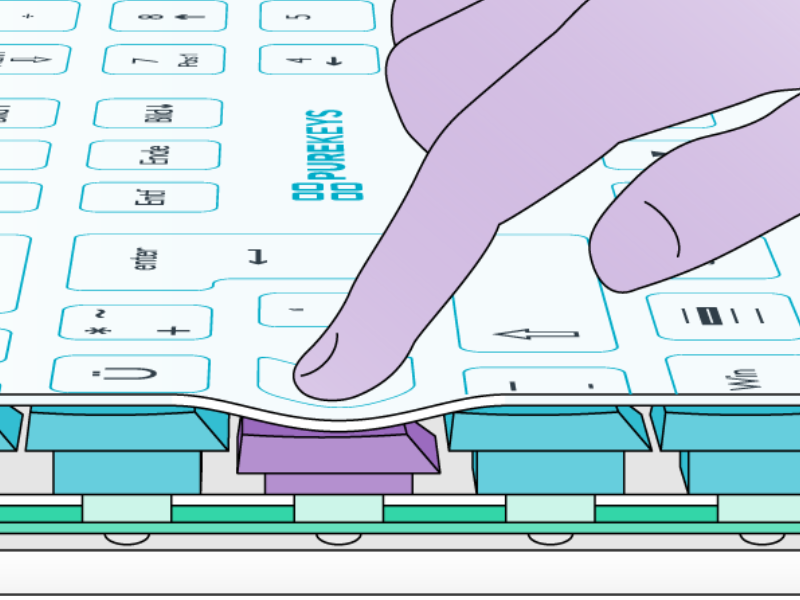
The seamless surface is designed for cleaning and disinfection, whilst at the same time enabling text input suitable for everyday use. The special Purekeys surfaces are robust and completely flat. At the same time, the tactile keys underneath ensure that the user experience remains much closer to that of a traditional keyboard, whilst still providing a good sense of key feedback. Combined with the precise labelling, this ensures that, after a short period of adjustment, accidental keystrokes are virtually non-existent.
This is particularly important in workplaces where staff regularly document, write, search or use standard keyboard shortcuts.
Anyone coming from a conventional office keyboard will, of course, notice the difference compared to the smooth surface and should allow themselves around 7–14 days to get used to it.
Yes, Purekeys keyboards and hygiene mice can be operated whilst wearing disposable gloves during everyday work. This is particularly important when the keyboard and mouse are used during treatment, examinations, in the operating theatre or when processing samples.
The Purekeys hygiene mice are also designed for use in hygiene-sensitive work areas. The touch-scroll area can also be used whilst wearing rubber gloves. The touchpad surface of the Purekeys 401 Series keyboard can also be operated fully whilst wearing disposable gloves, including using two-finger gestures.
As with all touch-sensitive surfaces, the feel of the controls may vary slightly depending on the type of gloves, the thickness of the material and the level of moisture.
In practical terms, this means: Purekeys can be integrated into standard hygiene procedures without the need to remove gloves for every keystroke. This makes it easier to use at treatment stations, laboratory workstations, nursing workstations and other hygiene-sensitive computer workstations.
Purekeys hygiene mice do not feature a traditional mechanical scroll wheel, as these are difficult to disinfect. Instead, there are two models:
- One with a scroll function via a smooth touch-scroll pad or scroll zone on the mouse surface, between the left and right mouse buttons.
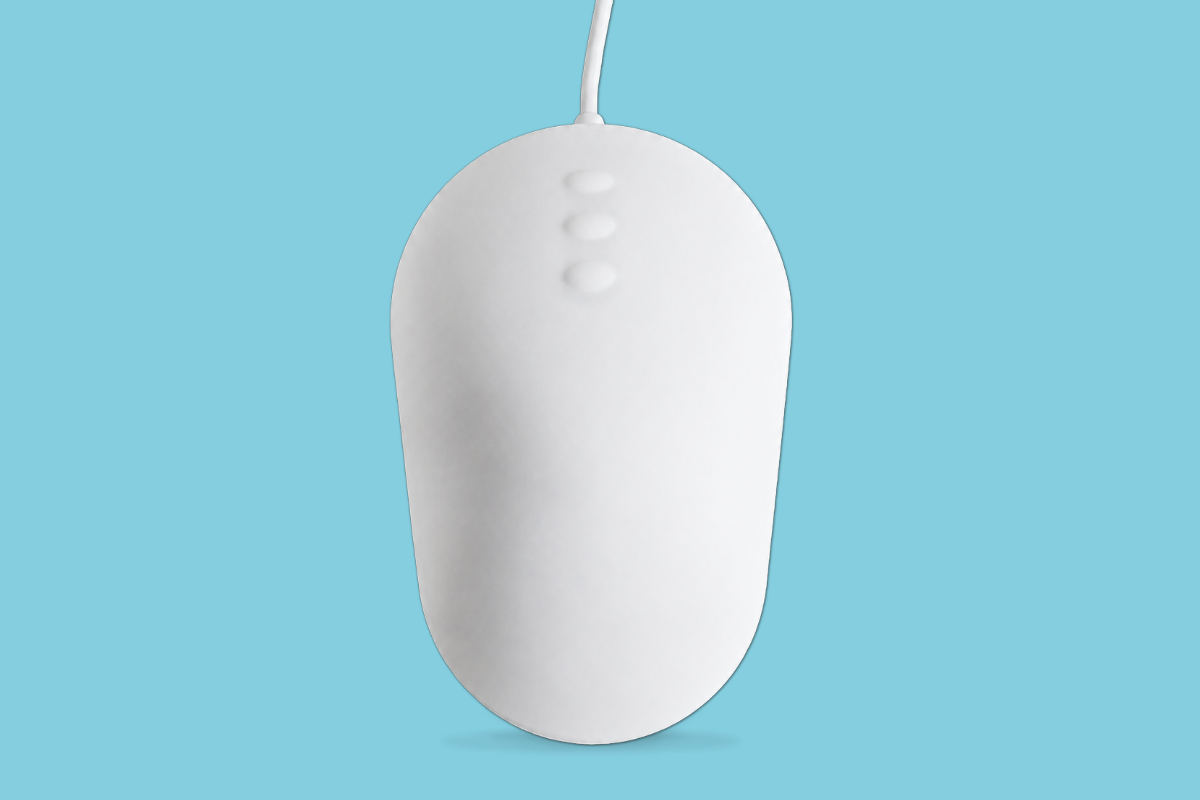
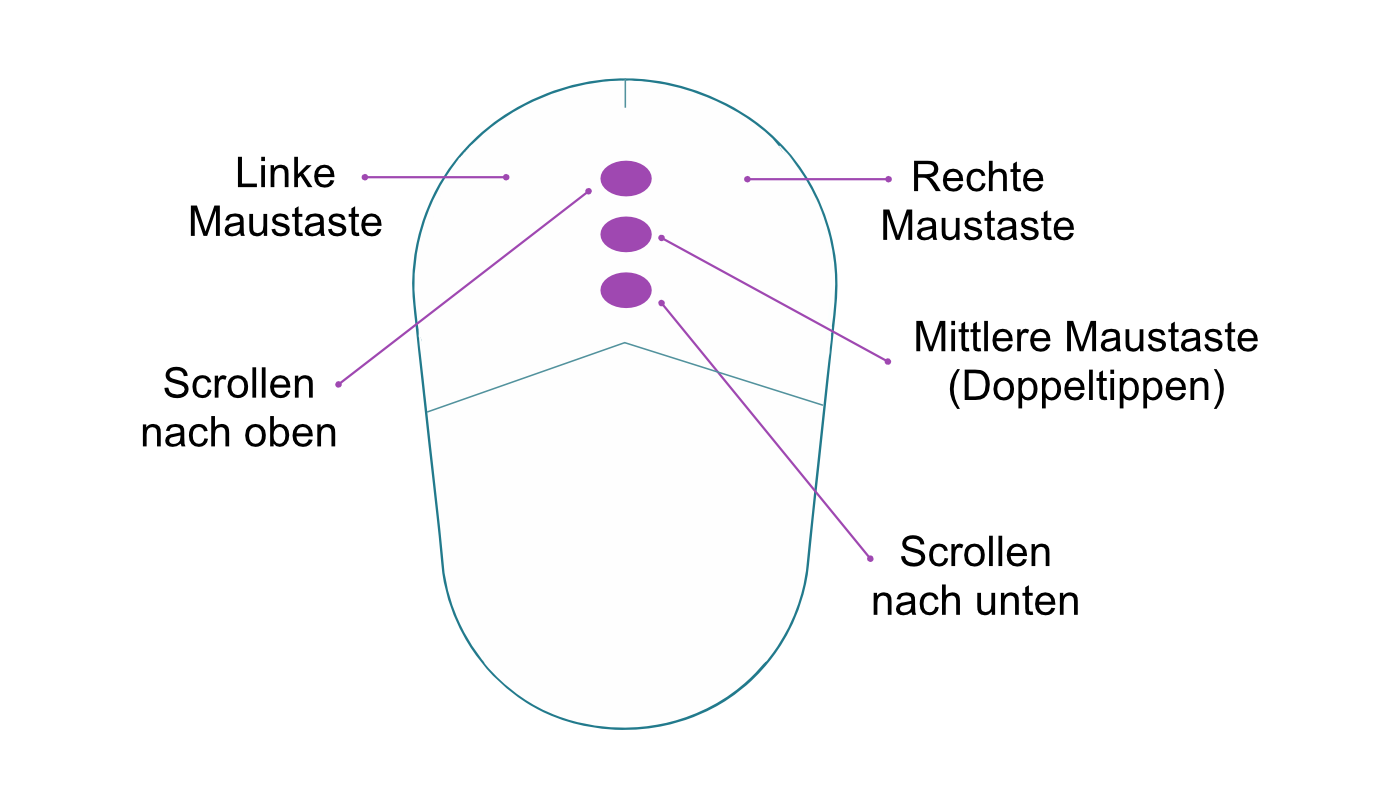
Available in wireless and wired versions in black and white: models 50075, 50275, 50065, 50265 - And one with three slightly raised buttons in the scroll zone: the front one for scrolling forwards, the middle one as the middle button, and the rear one for scrolling backwards.
Wired version available in white: Model 30065
The Purekeys mouse with touch scroll:
A light press or a gentle touch with your fingertip is enough to activate the scroll function. Depending on the direction of the movement, the screen will scroll up or down. Tapping the centre twice in quick succession acts as a way of activating a Middle button. In the standard Windows settings, this toggles the continuous scrolling function on or off.
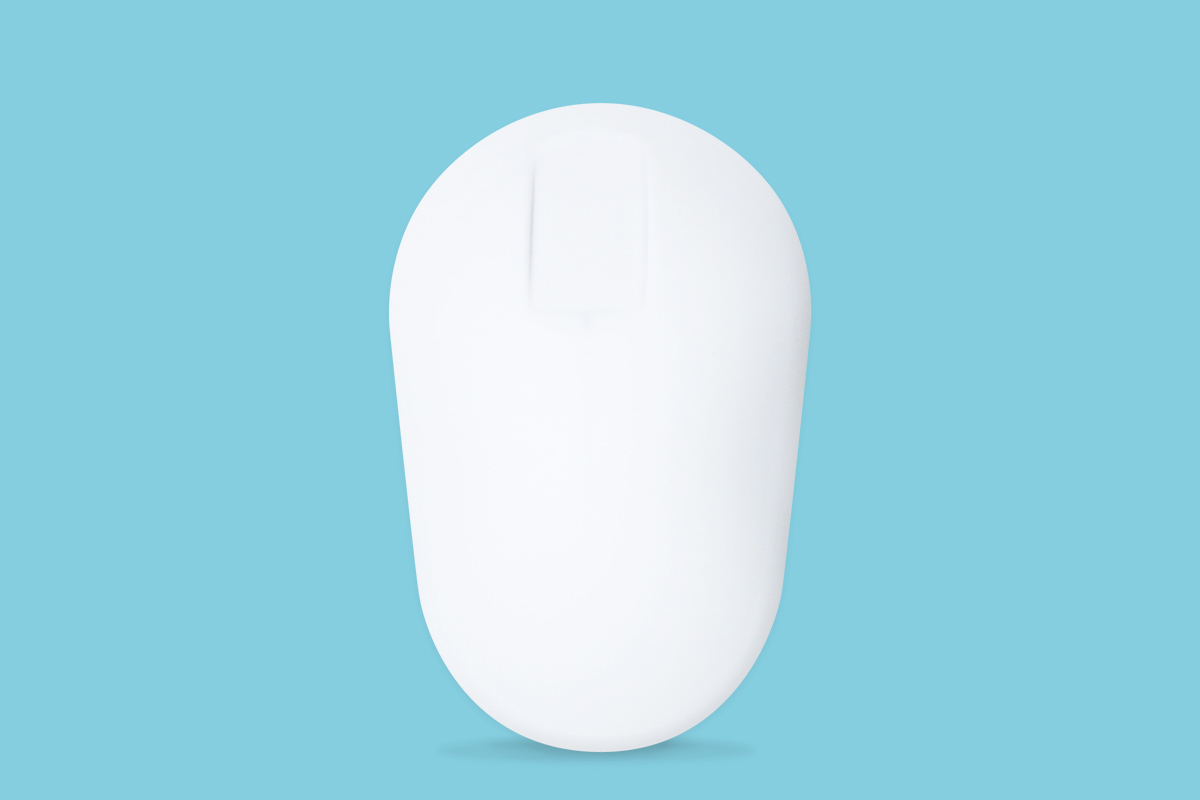
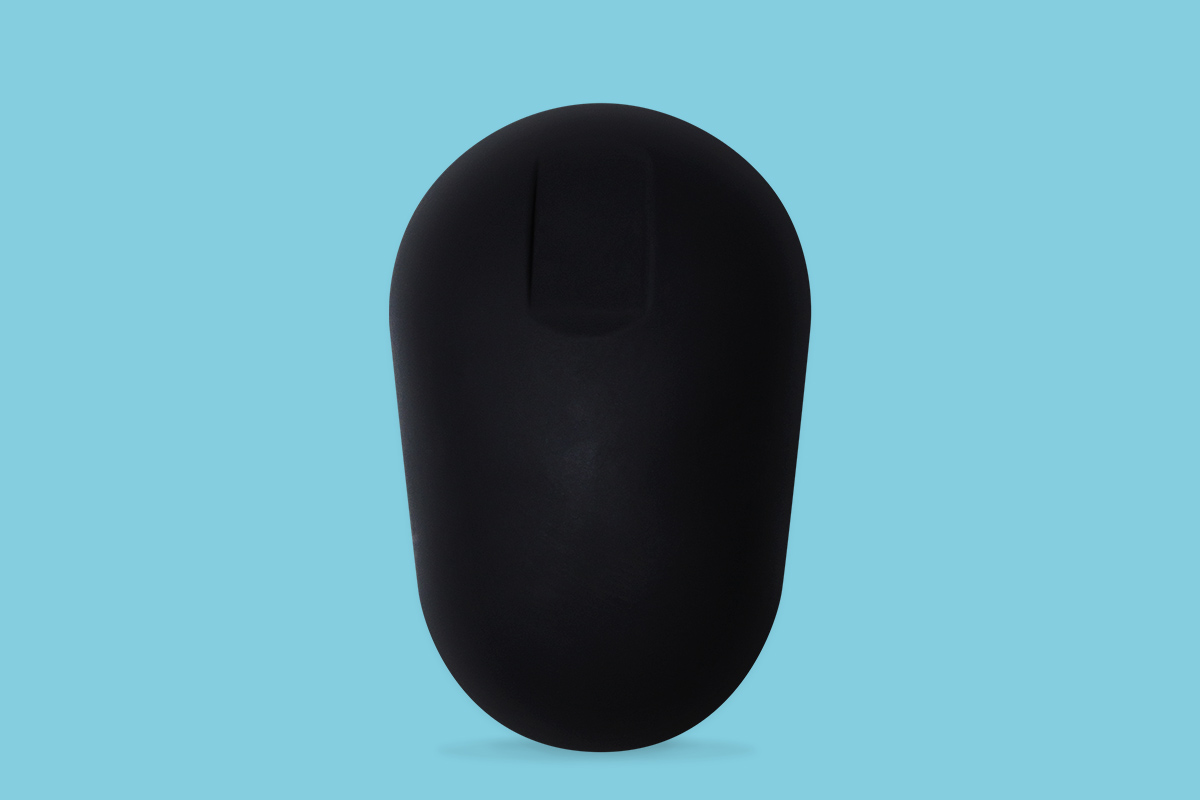
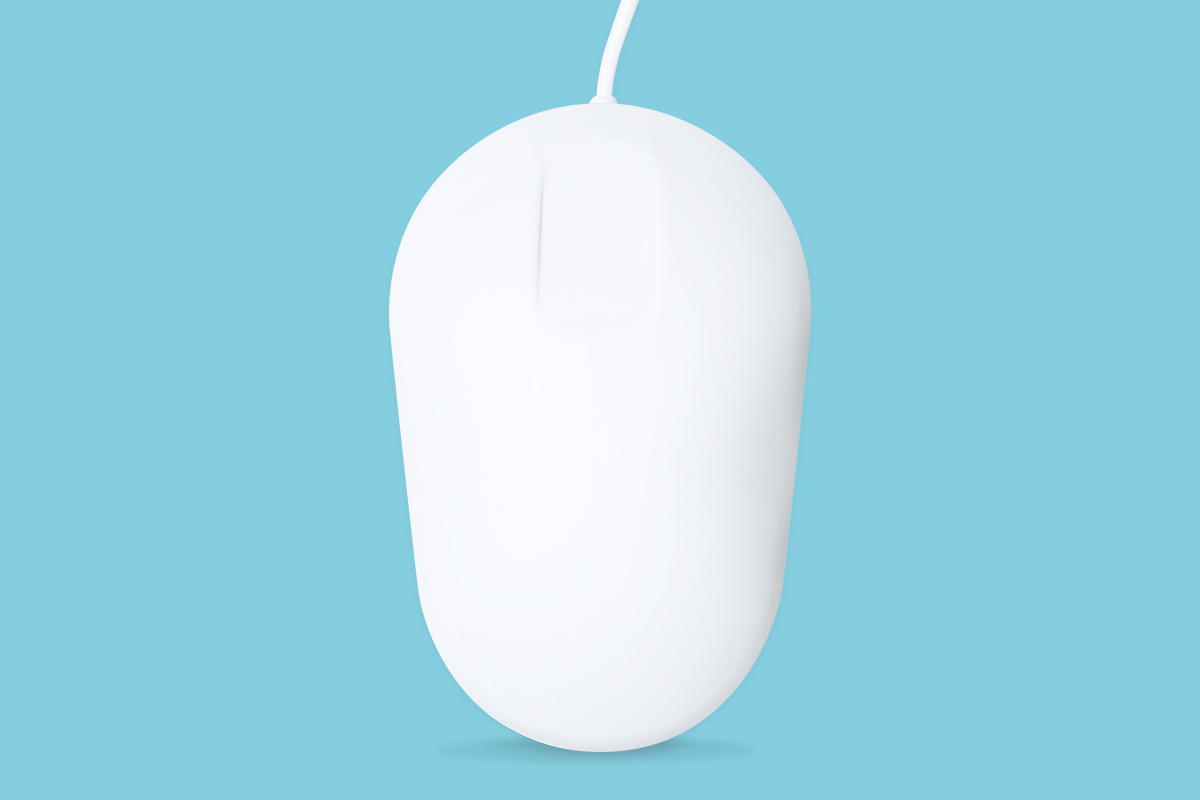
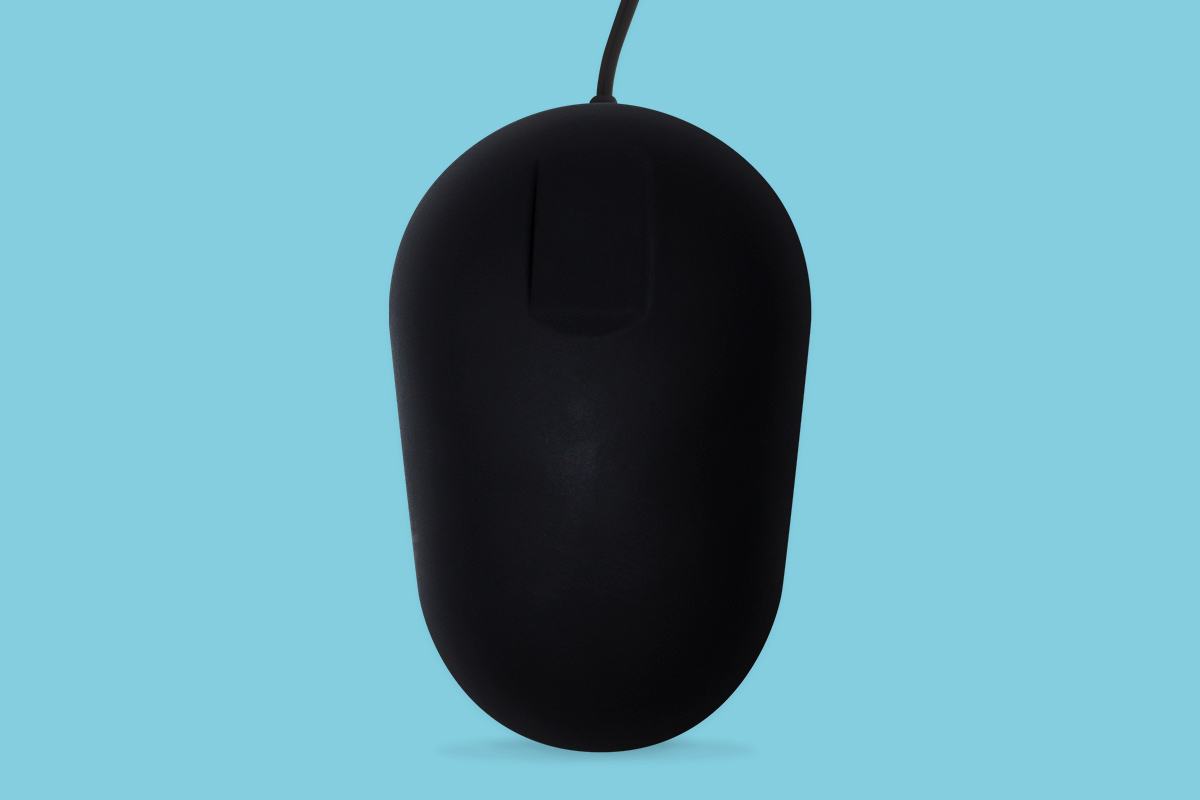
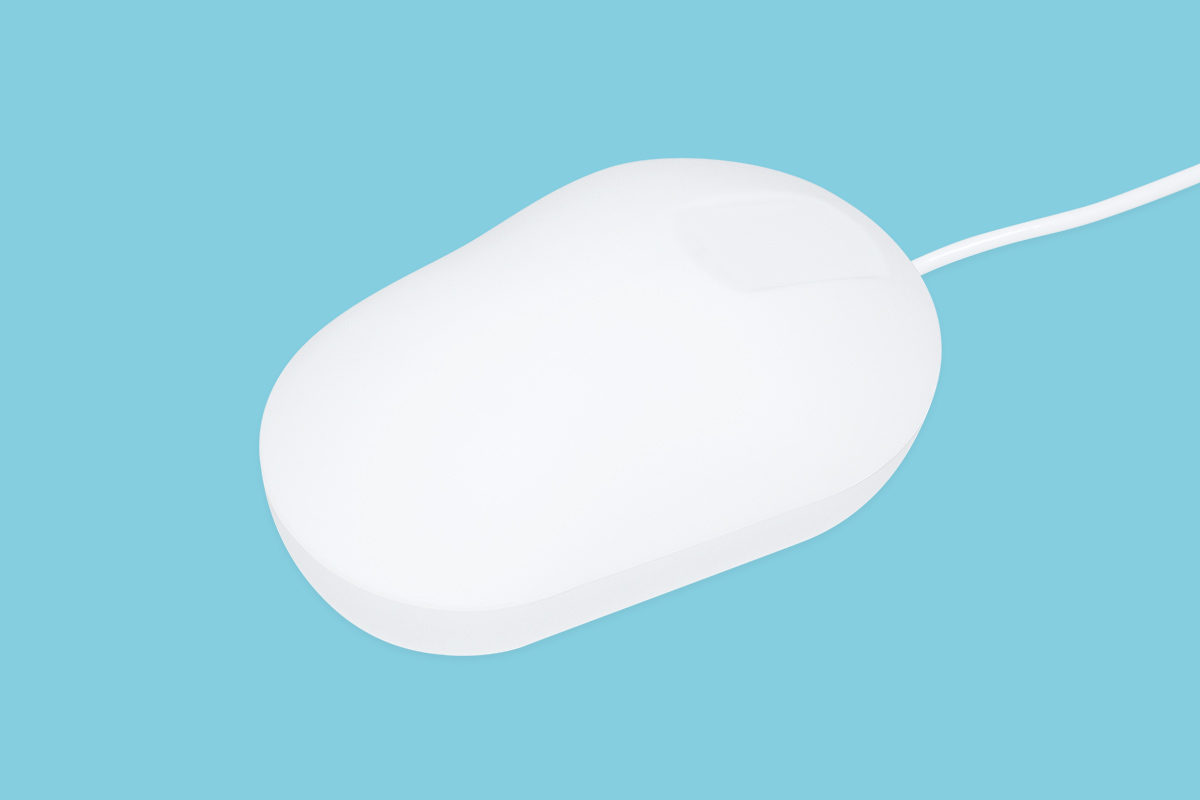
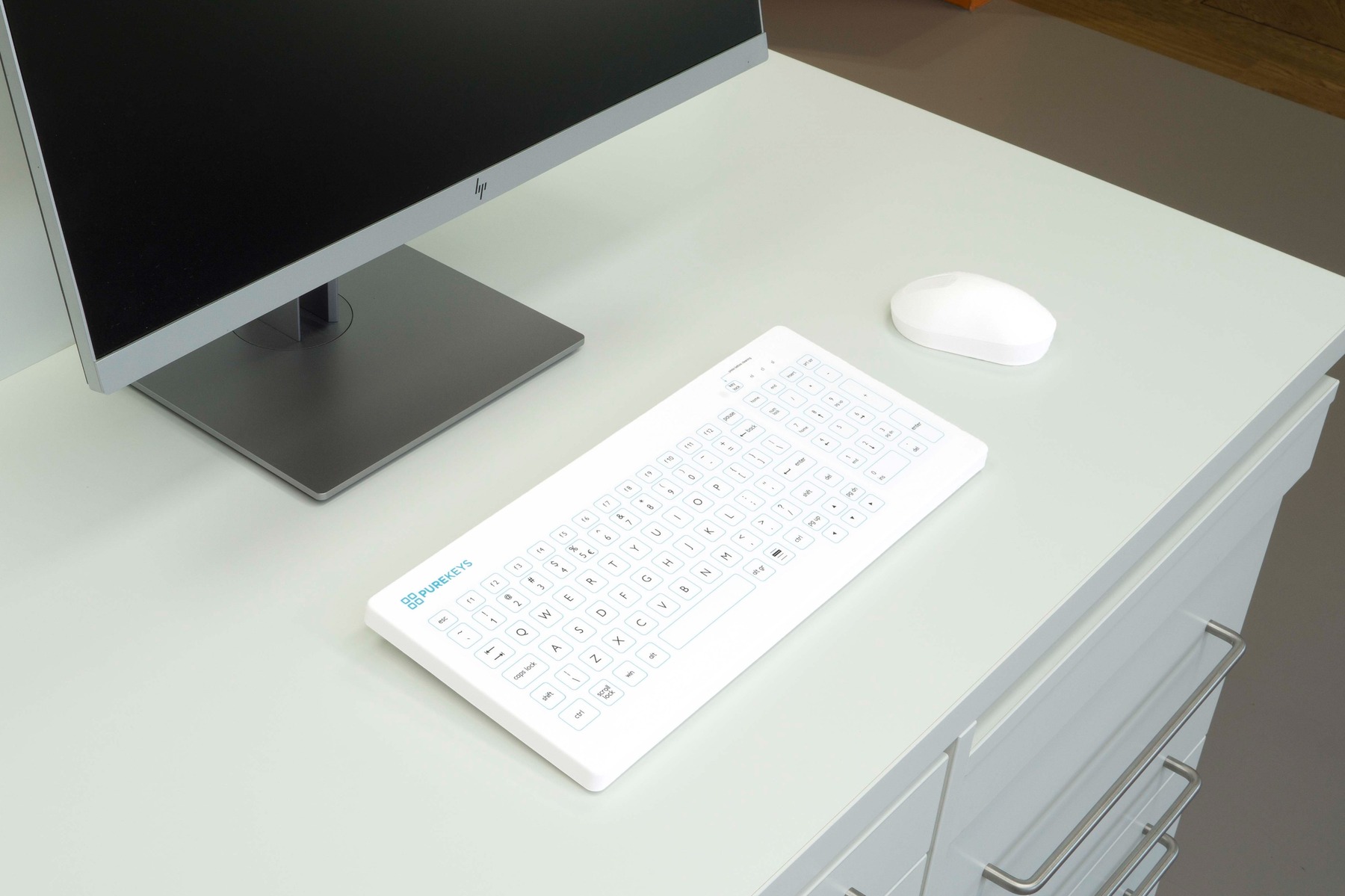
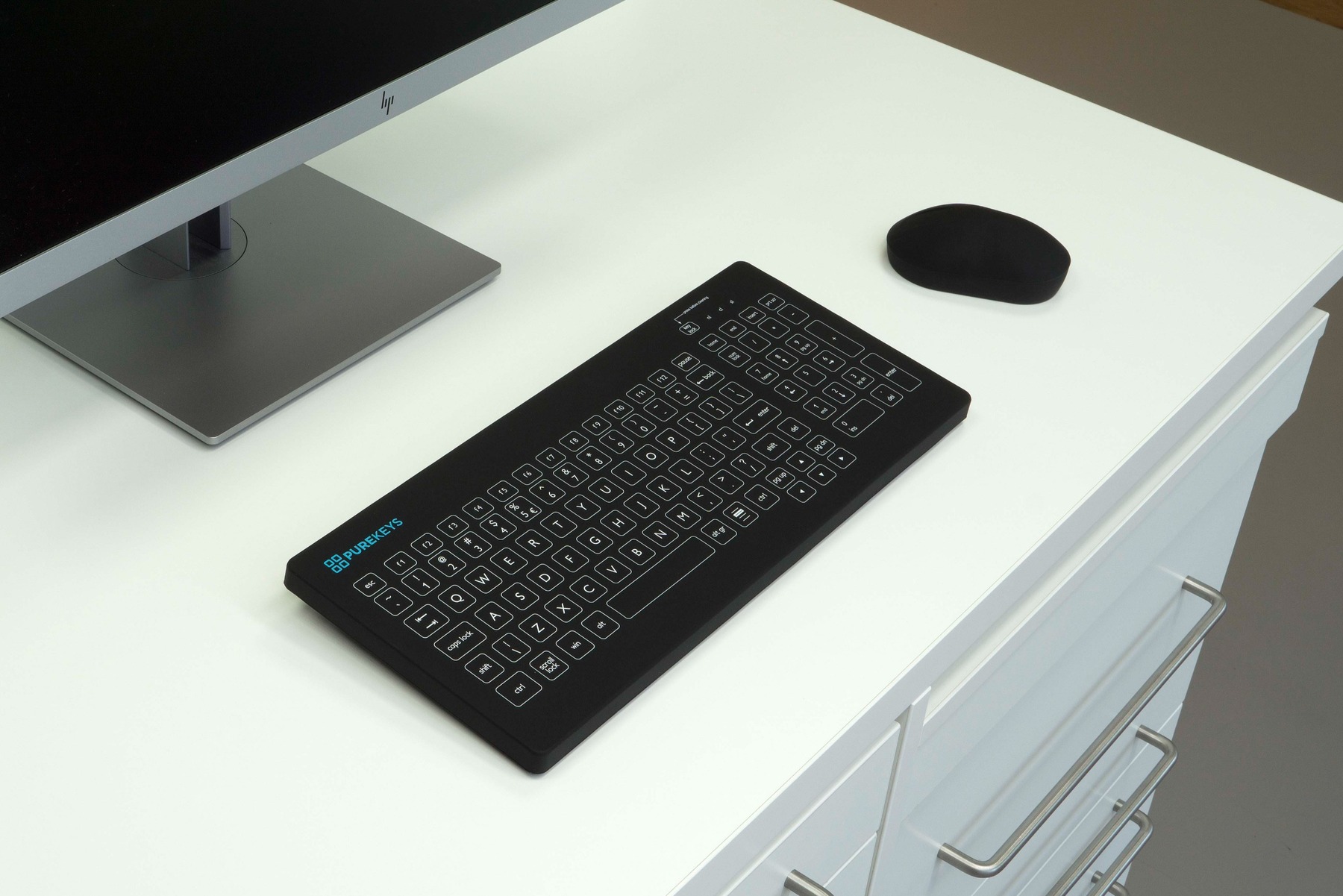
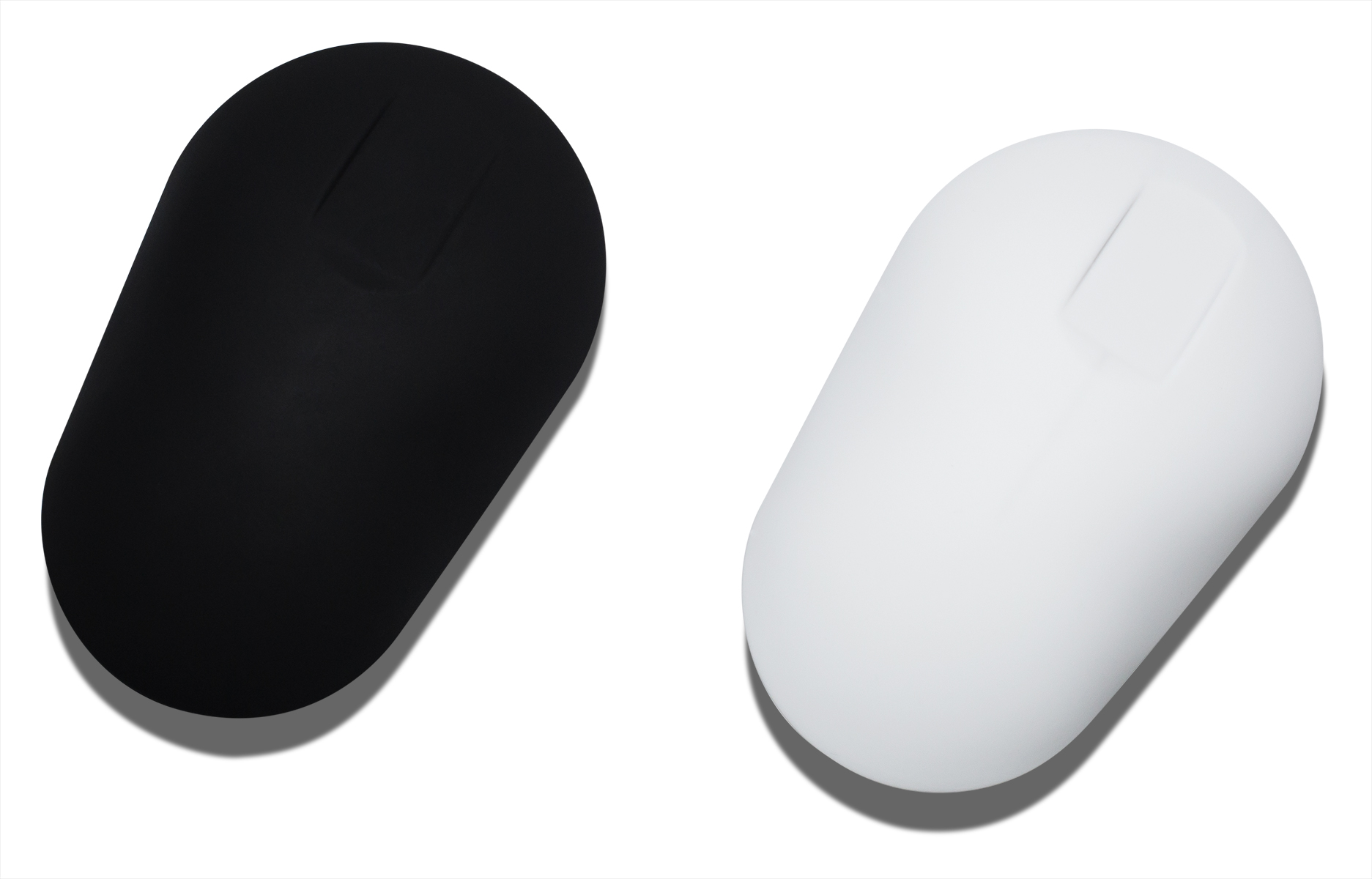
The main advantage lies in cleaning: on conventional mice, the classic scroll wheel is a typical area where dirt and residue can accumulate. The Purekeys Touch-Scroll or 5-button solution do away with this component and can therefore be used in everyday life in much the same way as a normal mouse, whilst remaining easier to wipe clean for better hygiene.
The touch-scroll function can also be used with Disposable gloves can be operated. The feel of the controls may vary slightly depending on the type of glove, the thickness of the material and the level of moisture.
Note on Windows mouse settings
If scrolling with the touch-scroll area feels a bit strange at first, adjusting the Windows mouse settings may help. There, you can set how many lines move across the screen with each scroll movement. If you increase this value slightly, the everyday user experience can come closer to that of a traditional mouse with a scroll wheel.
This adjustment is not strictly necessary. However, it may be useful if users are switching from a standard mouse with a scroll wheel and initially find scrolling with the touch scroll pad too slow or unfamiliar. The appropriate setting depends on the workstation, the software being used and personal preferences.
The Purekeys 5-button mouse:
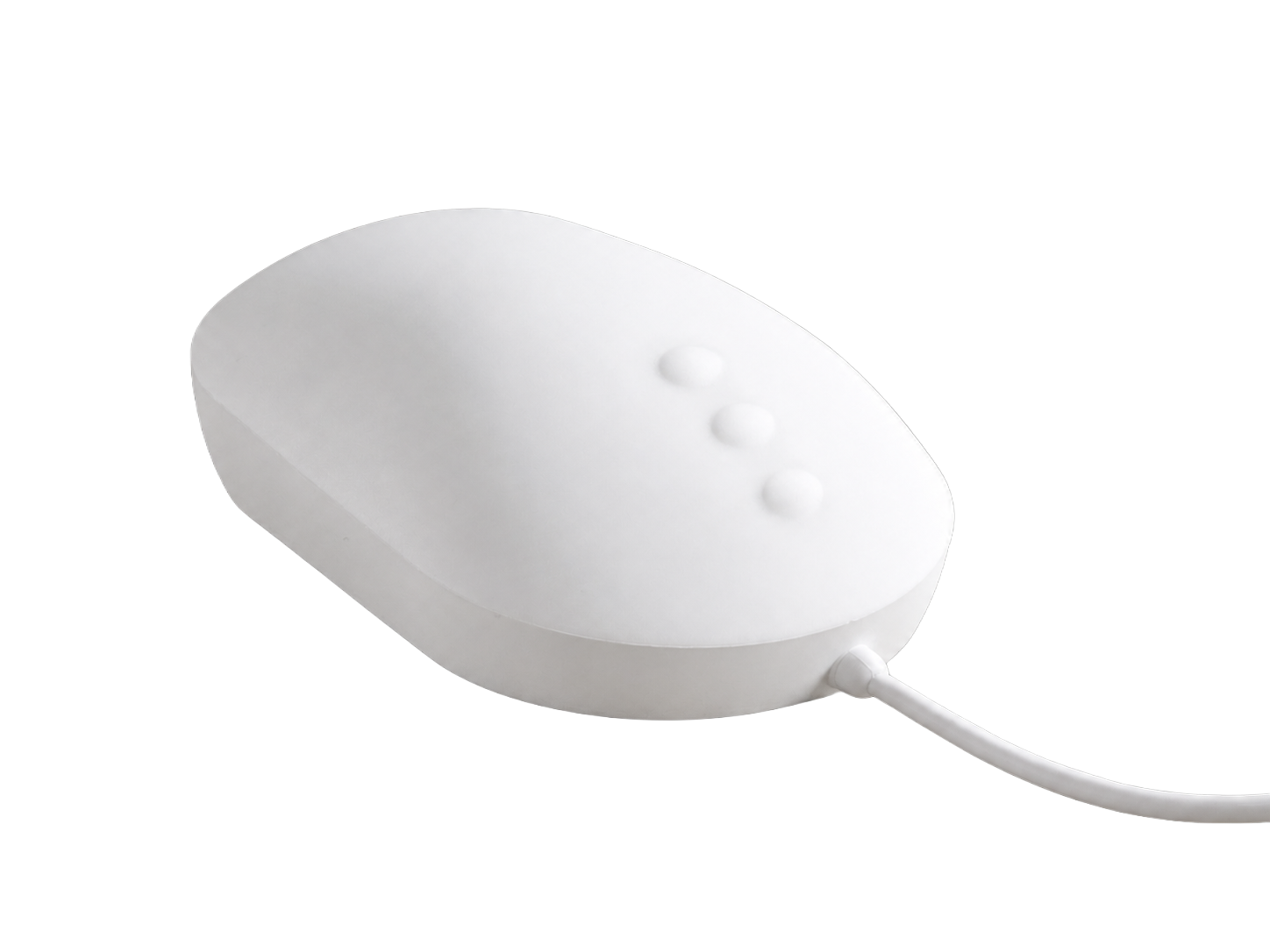
This mouse has three slightly raised buttons between the left and right mouse buttons. These are rounded and blend smoothly into the surface of the mouse. This makes them almost as easy to disinfect as the rest of the mouse.
A light press on the relevant button causes the screen to scroll forwards, activates the middle button function, or scrolls the screen backwards.
Mice
With touch scrolling or 5 buttons,
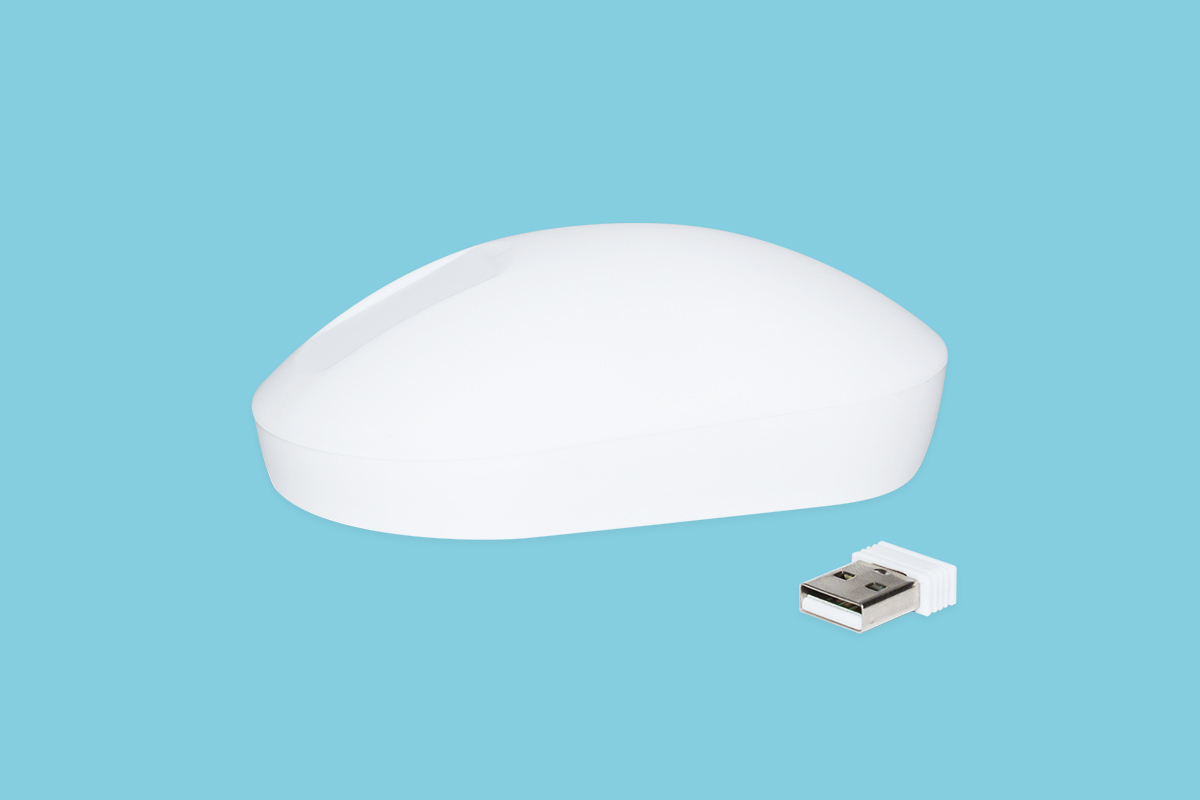
cordless, including 2x AAA batteries
or wired
in black or white.
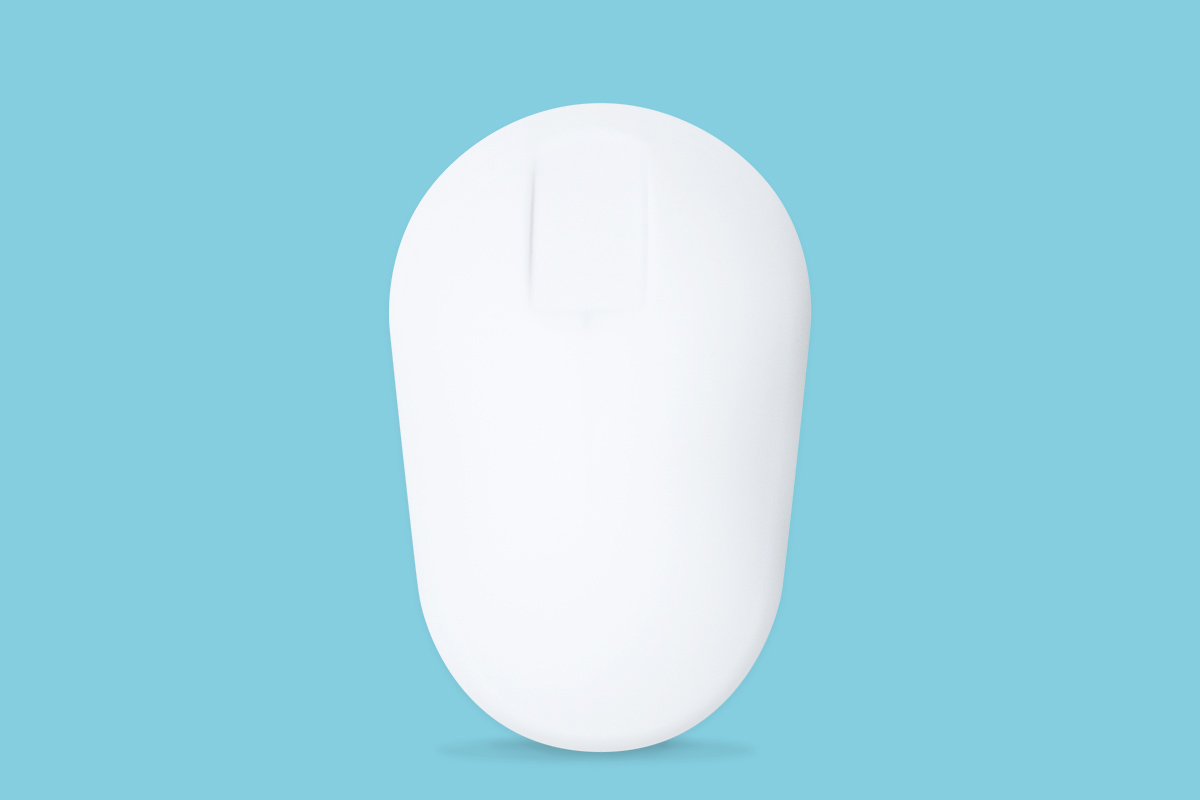
On Purekeys hygiene mice with a touch-scroll function, the middle mouse button is implemented as a double-click on the touch-scroll area. A quick double-click in the centre of the scroll area activates the middle mouse button.
This allows you to use the function that, on many standard mice, is triggered by pressing the scroll wheel. Depending on the program, this can be used, for example, to open a link in a new tab, to close a browser tab, or to access certain special functions in software applications.
The function triggered by a middle-click in any given instance depends on the software being used and the operating system’s mouse settings.
There are generally no technical differences between white and black Purekeys keyboards or hygiene mice. The colour primarily affects the visual design and how well the device blends in with the respective workplace.
The basic hygienic properties, the sealed surface made of a flat silicone matrix and the ease of cleaning are maintained regardless of the colour.
White equipment often has a classic, medical look and fits in well with surgeries, hospitals, laboratories, dental practices or care settings. Black equipment can be a good choice if it blends in better with existing computers, monitors, equipment trolleys or technical workstations.
The key factors to consider when making a choice are therefore, above all, the location of use, the desired appearance, availability, country-specific layout and connection type.
Technology, radio and batteries
Products, variants and materials
Purekeys comprises various product ranges for hygiene-critical computer workstations. These include standard-width hygiene keyboards, compact hygiene keyboards, hygiene mice, special models and accessories.
Standard-width hygiene keyboards are suitable for traditional computer workstations where a full-size keyboard with the usual width and a numeric keypad is required.
Compact hygiene keyboards are designed for workstations with limited space, such as on equipment trolleys, in confined treatment rooms or at technical workstations.
Hygiene mice complement keyboards and provide a mouse that is easier to clean, without a traditional scroll wheel with gaps between the parts.
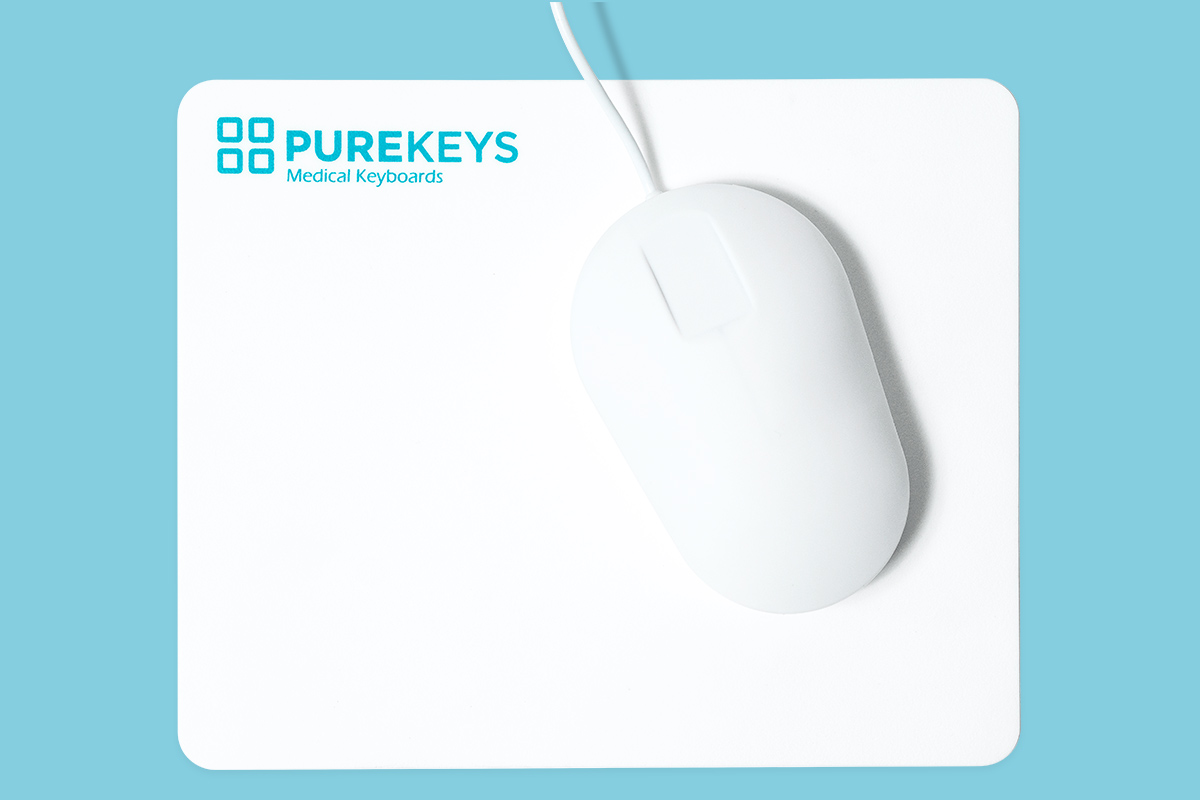
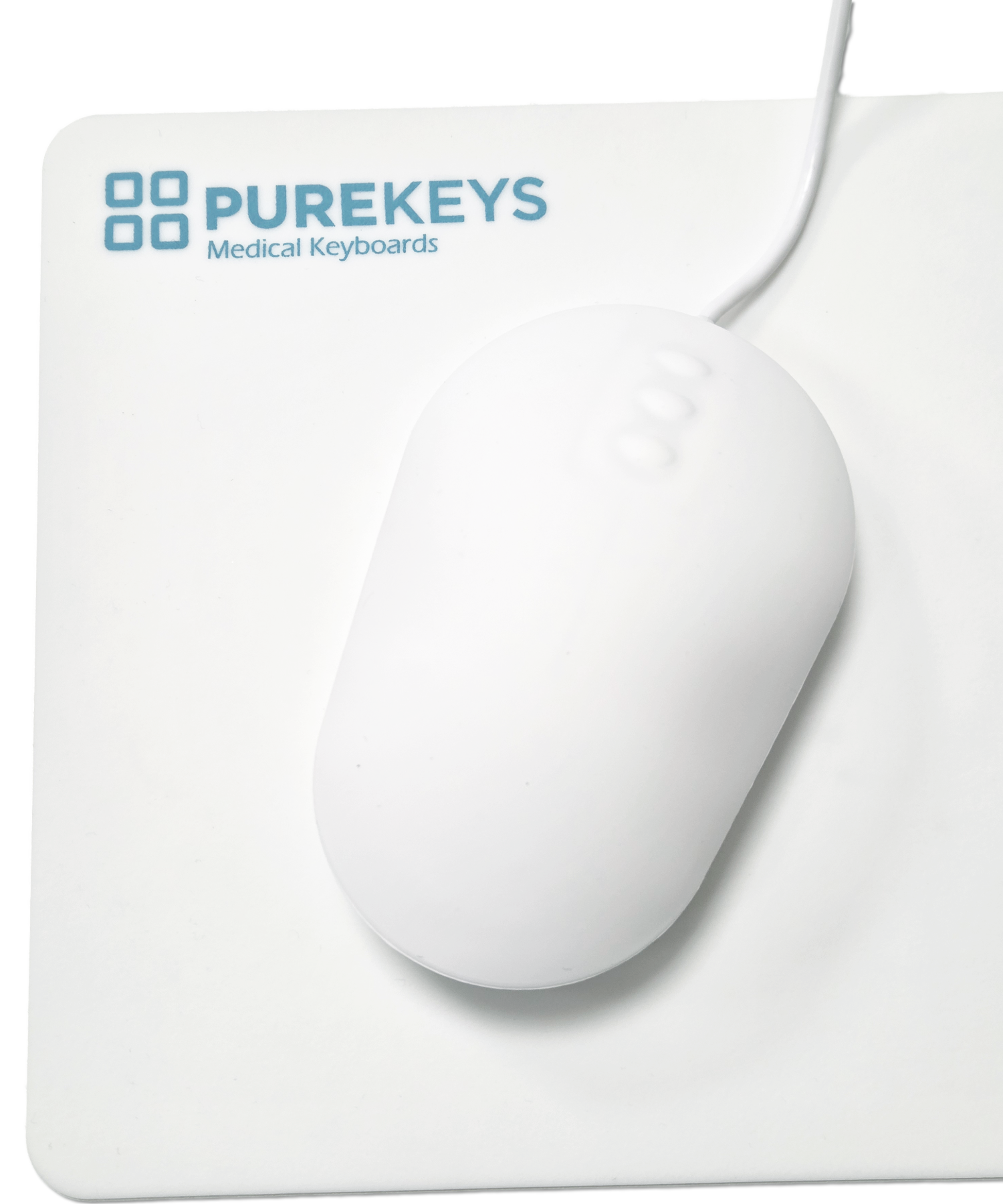
Special models include bespoke solutions such as keyboards with integrated touchpads, VESA variants or other specialised designs. Accessories complement the workstation solution, for example with mouse mats, keyboard covers or replacement wireless receivers.
Overview of Purekeys devices
Find the right solution for keyboard and mouse hygiene.
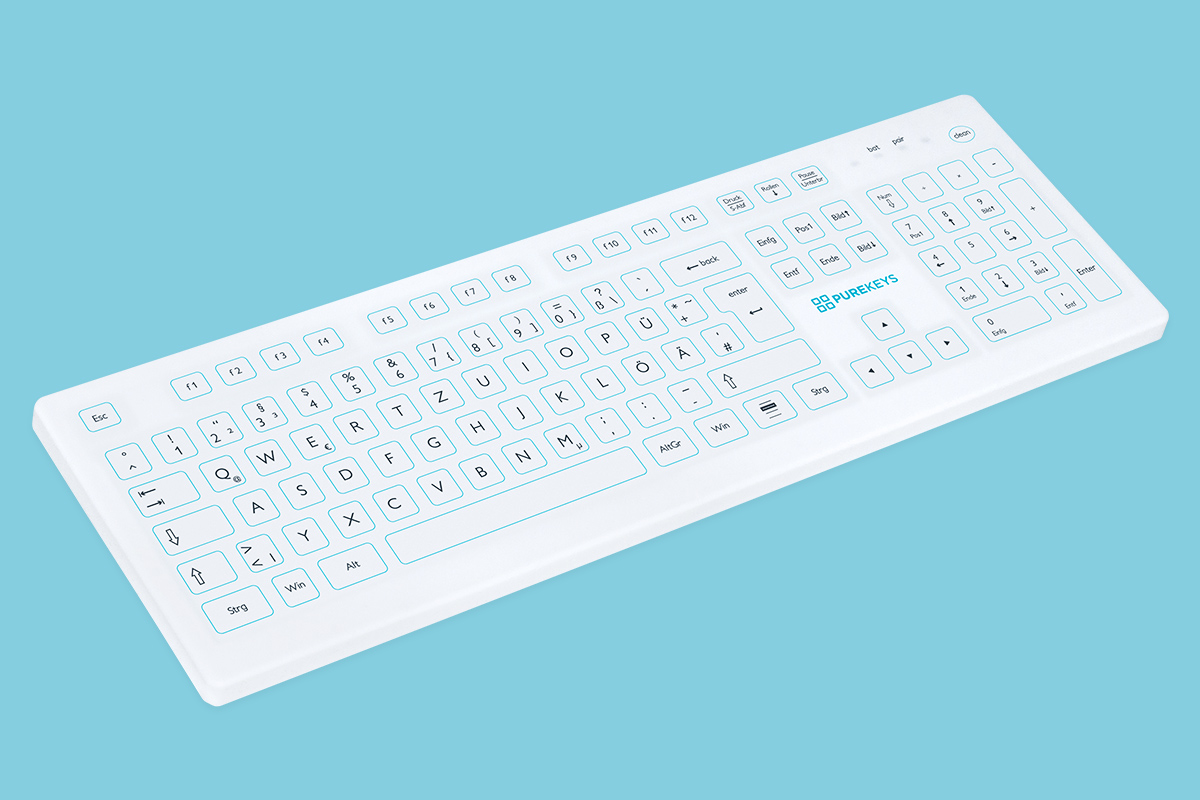
Standard width
Standard width in a 3-column layout, black or white
and in various country layouts.
Compact
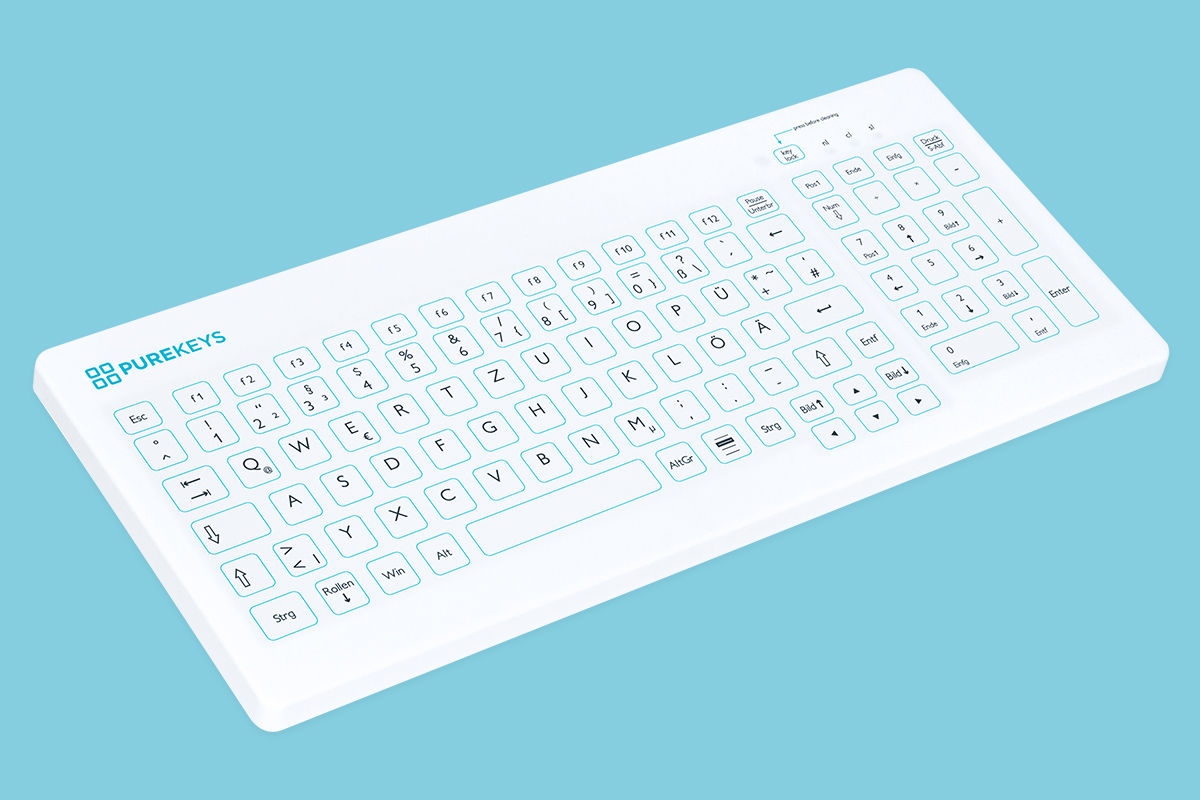
Compact width in a 2-column layout, available in black or white and with various country-specific layouts.
Special models
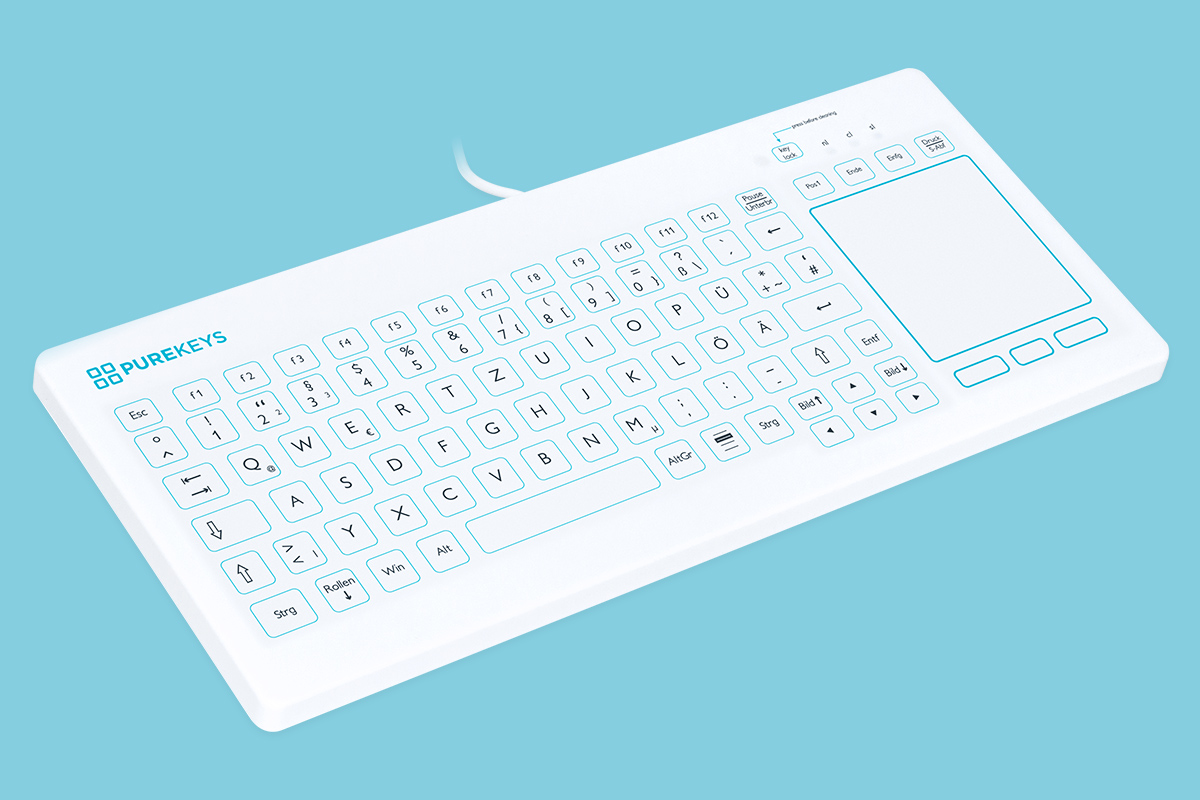
Purekeys as a touchpad version or with VESA-compatible mounting and a low profile in a 2-column layout,
Mice
With touch scroll or 5 buttons, wireless or wired, in black or white.
Accessories
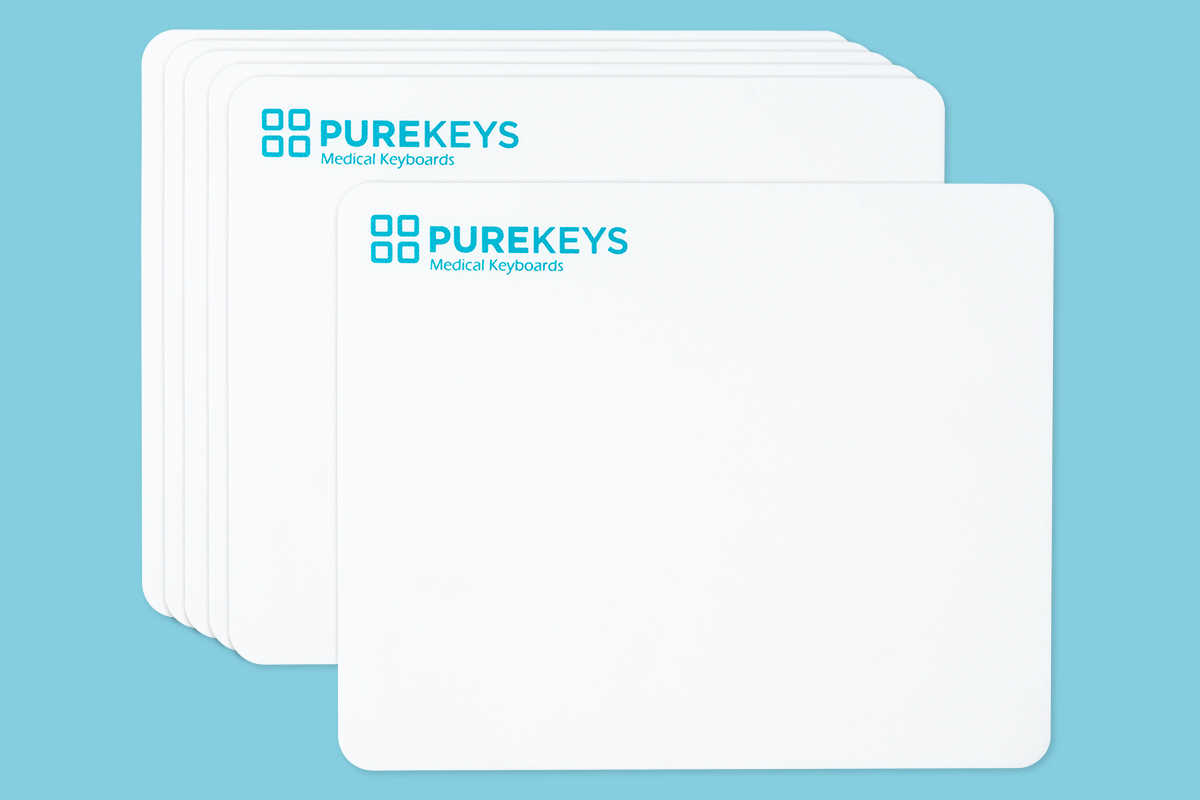
Disinfectable mouse mats, replacement wireless receivers, replacement keyboard covers, spare parts,
Since 2025, the Purekeys hygiene mice have been part of the Series 5 range. The model numbers of the previous models began with 4, whilst the current ones begin with 5:
– 40065 → 50065: Hygiene mouse with USB cable, white
– 40265 → 50265: Hygiene mouse with USB cable, black
– 40075 → 50075: wireless hygiene mouse, white
– 40275 → 50275: wireless hygiene mouse, black
Another new feature in the 5 Series is the 30065 with five buttons and a USB cable, white.
What’s new:
– Pause function for disinfection: Halten Sie die linke und die rechte Maustaste gleichzeitig 6 Sekunden gedrückt. Die grüne Leuchte blinkt und zeigt den Reinigungsmodus an; alle Mauseingaben sind blockiert. Zurück in den Arbeitsmodus: beide Tasten 4 Sekunden gedrückt halten – oder automatisch 30 Sekunden nach der letzten Eingabe.
– A single wireless receiver for mouse and keyboard: Kabellose Purekeys Tastaturen können zusammen mit der neuen kabellosen Hygienemaus über nur einen Funkempfänger (USB-Dongle) der neuesten Generation betrieben werden. Der Maus-Empfänger PKD03 und der Tastatur-Empfänger PKB01 sind baugleich (nur anders beschriftet): Die Tastatur lässt sich mit dem Empfänger der Maus koppeln, so wird nur ein USB-Anschluss belegt.
– Easier pairing: Pressing the pairing switch in the battery compartment starts the search and reconnects the device to the radio receiver.
– Blue optical sensor: It also scans reliably on very bright or reflective surfaces, thereby improving ease of use.
This remains the same: The design, look and feel are identical to the previous Purekeys hygiene mouse.
Do you have an earlier model? Die Modelle 40065, 40265, 40075 und 40275 haben keine Pausenfunktion. Reinigung und Desinfektion funktionieren wie gewohnt. Wichtig bei kabellosen Mäusen: Die älteren Maus-Empfänger PMS01 und PMS02 passen nicht zu den neuen Mäusen 50075/50275 – diese brauchen den Empfänger PKD03 (oder den baugleichen Tastatur-Empfänger PKB01).
Do you have any questions about Purekeys products, or would you like further information?
We would be happy to provide you with certificates, product specifications and further information.
Yes, the surfaces of the Purekeys products are made from a blend of silicone materials and are completely latex-free.
This is particularly relevant in work environments where material compatibility and hygiene play a key role. It is particularly important to carefully check the materials used in medical facilities, laboratories, care settings and dental practices.
If there are specific requirements regarding material compatibility, allergy risks or internal procurement guidelines, we will be happy to assist you in identifying the relevant product information.
Do you have any questions about Purekeys products, or would you like further information?
We would be happy to provide you with certificates, product specifications and further information.
Yes, the surfaces and all other parts of the disinfectable keyboards and computer mice from Purekeys are designed for regular cleaning and disinfection in professional environments. The silicone matrix of the keyboard and mouse surfaces is resistant to disinfectants such as those used in medical settings, laboratories, food-handling areas and similar working environments. The other parts of Purekeys devices are also fully resistant to common disinfectants.
These include many virucidal disinfectants commonly used in everyday working life, as well as products containing chlorine, ammonia or with an alcohol content of over 70 per cent. It is always essential that the product used is approved for the specific application and is used in accordance with the manufacturer’s instructions.
We recommend wipe disinfection for cleaning. Please also follow the guidelines set out in your hygiene plan and the disinfectant manufacturer’s instructions for use.
Yes, suitable replacement surfaces are available for Purekeys keyboards. This means that, after prolonged use, it is not always necessary to replace the entire device. This can be particularly useful if the keyboard is still in working order but the surface needs replacing after many years of intensive use.
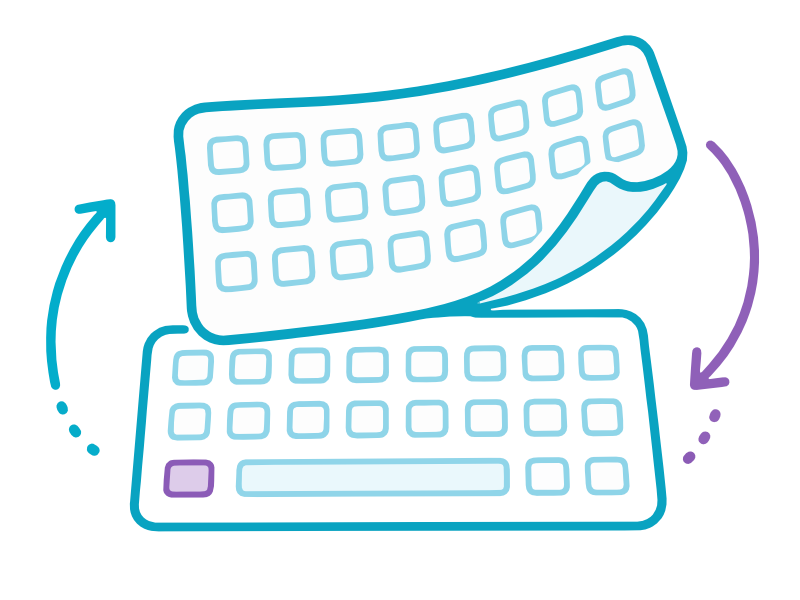
The actual service life depends heavily on the area of application, the frequency of cleaning, the cleaning agents used and the mechanical stress to which it is subjected. We have developed a silicone matrix for the surface which, when used normally and correctly, will retain its appearance and remain functional for many years.
If a surface shows visible damage, significant wear or changes in the material, it should be assessed whether it would be advisable to replace the surface or the equipment.
Purekeys products have been tested and meet many relevant requirements. These include CE, FCC and RoHS.
CE is relevant to the European market. FCC relates to electromagnetic compatibility requirements for the US market. RoHS refers to the restriction of certain hazardous substances in electrical and electronic equipment.
In practical terms, this means: Purekeys devices are not just simple accessories, but tested computer input devices designed for professional work environments.
If you require specific certificates, documents or product information for your organisation, we will be happy to assist you in providing the relevant documentation.
Yes, Purekeys keyboards are available in various country layouts. This allows them to be adapted to the standard typing and working practices in each country.
For German-speaking countries, German, Austrian and Swiss layouts are particularly relevant. Depending on the model, other country-specific layouts may also be available.
If you’re unsure which layout is best suited to your workplace, we’d be happy to advise you.
You can download an overview of the country layouts here:
Germany
All other available country layouts
Selection, ordering and advice
The right Purekeys solution depends on how the workstation is used. The key factors are, above all, the footprint, the scope of input, the cleaning frequency, the connection type, the desired level of mobility and whether a hygiene mouse is required in addition to the keyboard.
For fixed computer workstations involving regular text entry, a standard-width hygiene keyboard is often a good choice. For cramped workstations, mobile trolleys or workstations with specific equipment, a compact keyboard may be more suitable.
For specific installation scenarios or workstations where space is limited, specialised models such as touchpad or VESA solutions may be a useful option.
We’d be happy to help you choose the right solution for your specific workplace.
Overview of Purekeys devices
Find the right solution for keyboard and mouse hygiene.
Standard width
Standard width in a 3-column layout, black or white
and in various country layouts.
Compact
Compact width in a 2-column layout, available in black or white and with various country-specific layouts.
Special models
Purekeys as a touchpad version or with VESA-compatible mounting and a low profile in a 2-column layout,
Mice
With touch scroll or 5 buttons, wireless or wired, in black or white.
Accessories
Disinfectable mouse mats, replacement wireless receivers, replacement keyboard covers, spare parts,
A Purekeys model with built-in touchpad can be useful if you want to combine the keyboard and pointing device as compactly as possible. This is particularly helpful at workstations where there is no extra space for a separate mouse.
Typical examples include mobile medical trolleys, equipment workstations, wall-mounted workstations, technical workstations or work areas where the keyboard and mouse should be positioned as close together as possible.
Models with standard VESA mounting or special mounting options are useful if the keyboard is not simply to be placed on a table, but needs to be attached to a bracket, trolley, arm or device.
Such specialised models should always be selected on the basis of the specific workplace situation. We would be happy to work with you to determine which solution is most suitable.
401 – Integrated touchpad
Space-saving keyboard and cursor control
in a single device.
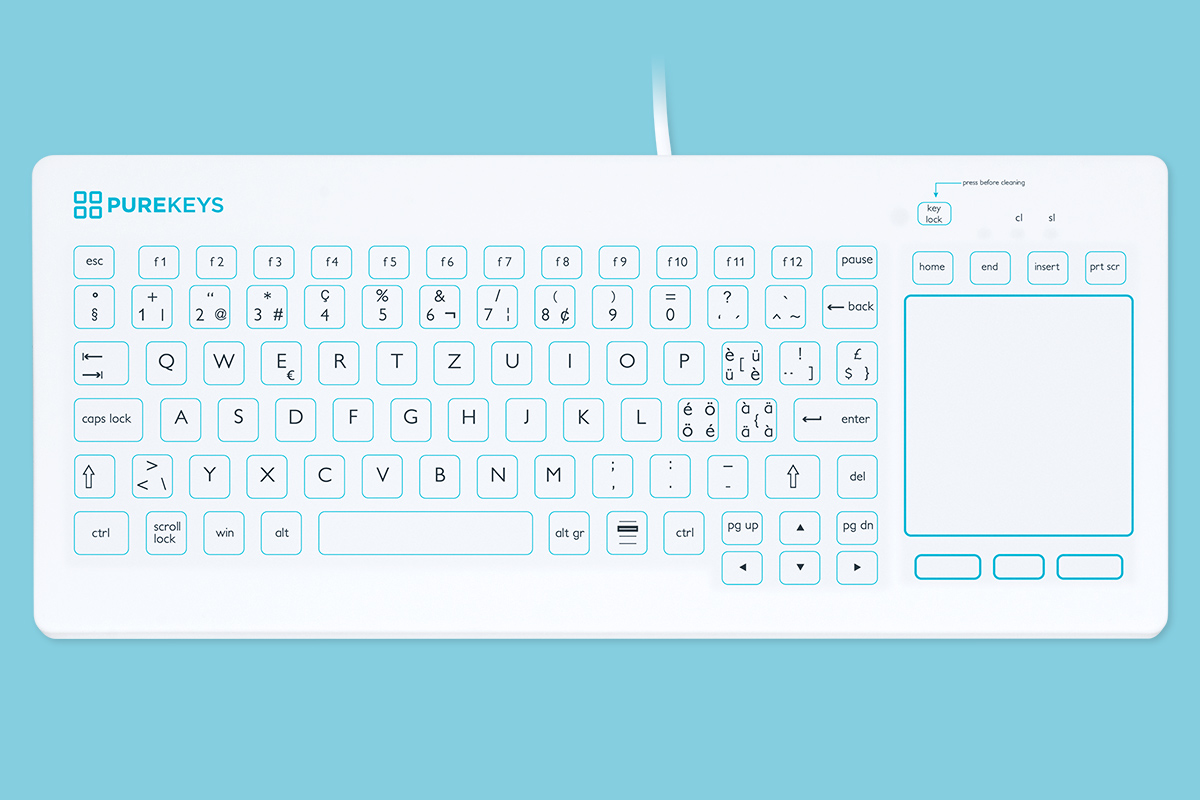
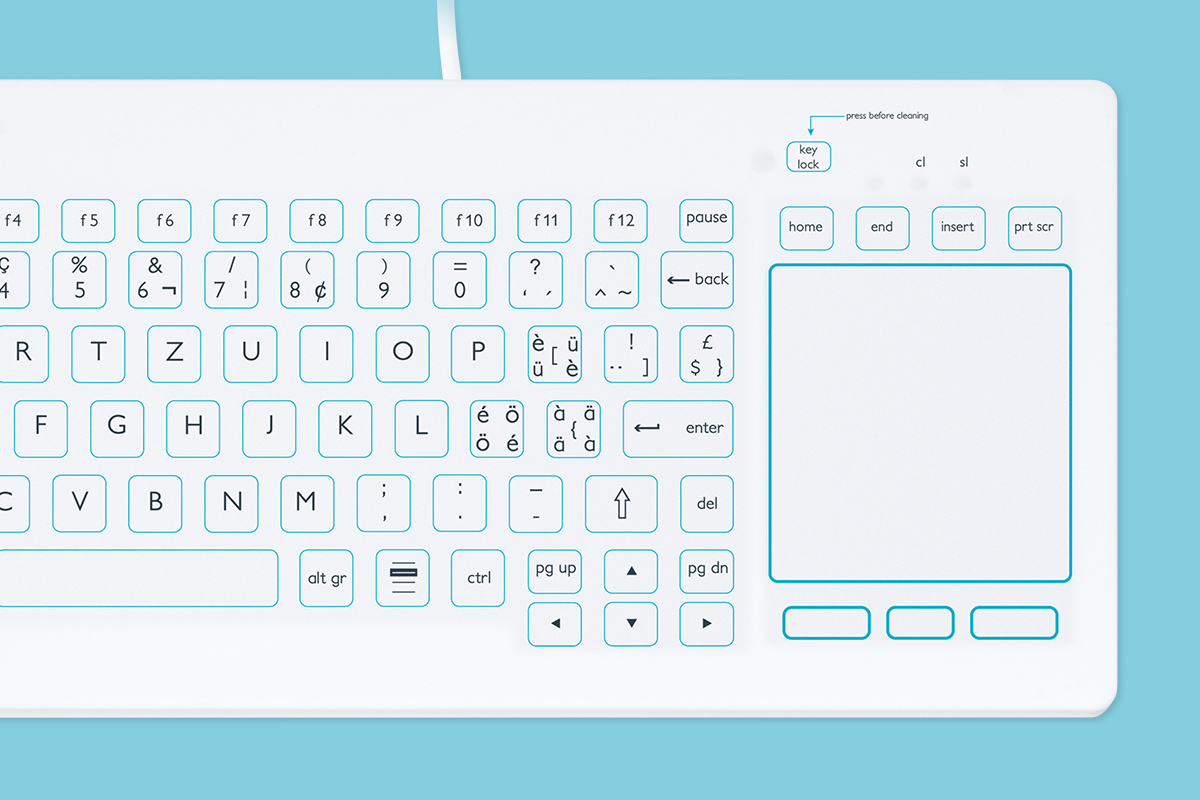
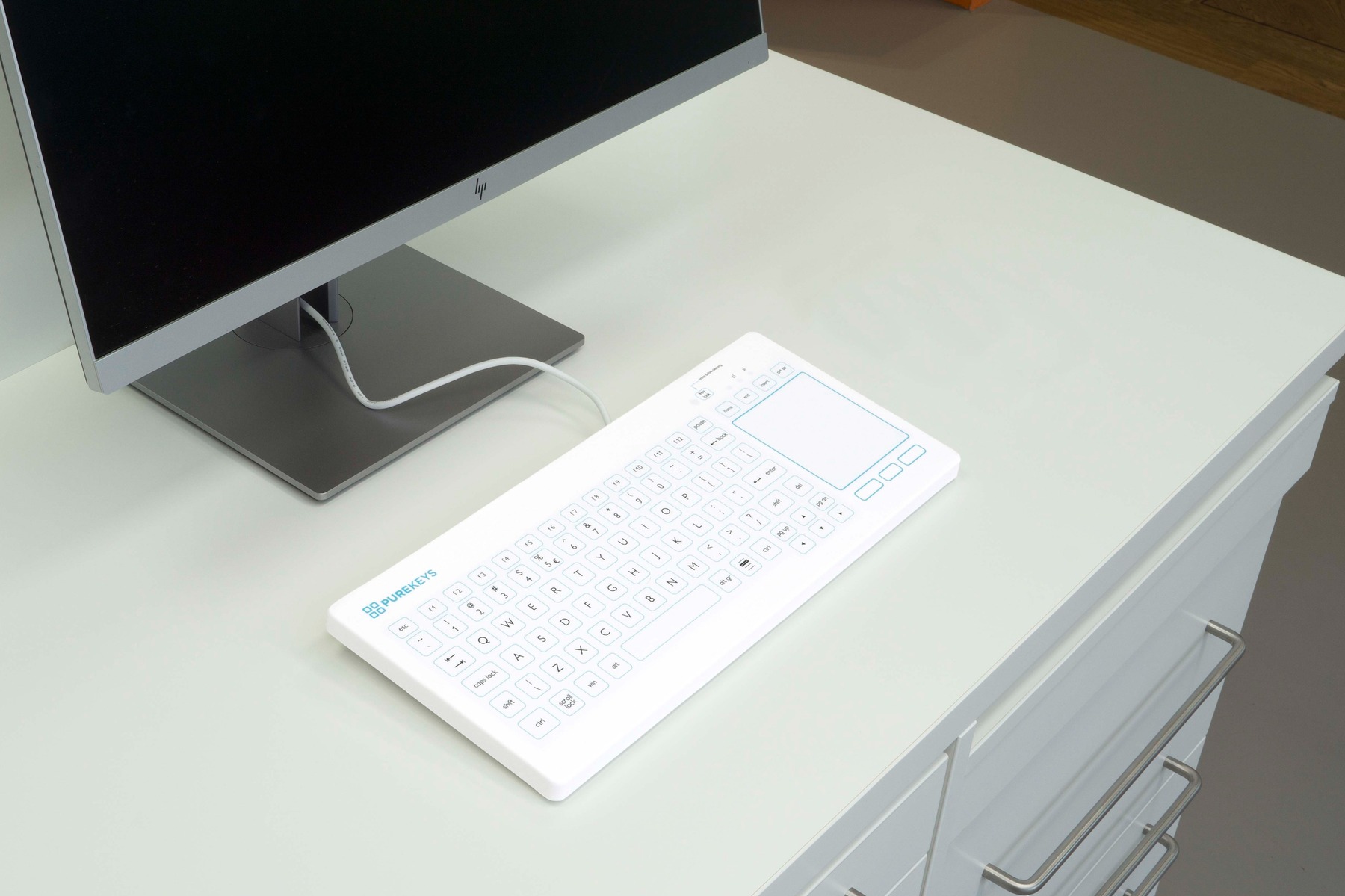
The Purekeys 401 combines a compact keyboard with an integrated touchpad. This means that keyboard and mouse functions are available in a single, disinfectable input device.
Multi-touch gestures
The large touchpad can be used for moving, scrolling, zooming and clicking. The keyboard supports several Windows ‘two-finger gestures’.
Below the touchpad, there are also three microswitches for tactile mouse buttons.
300 – flat and mountable
For VESA mounts, equipment trolleys and flat keyboard drawers.
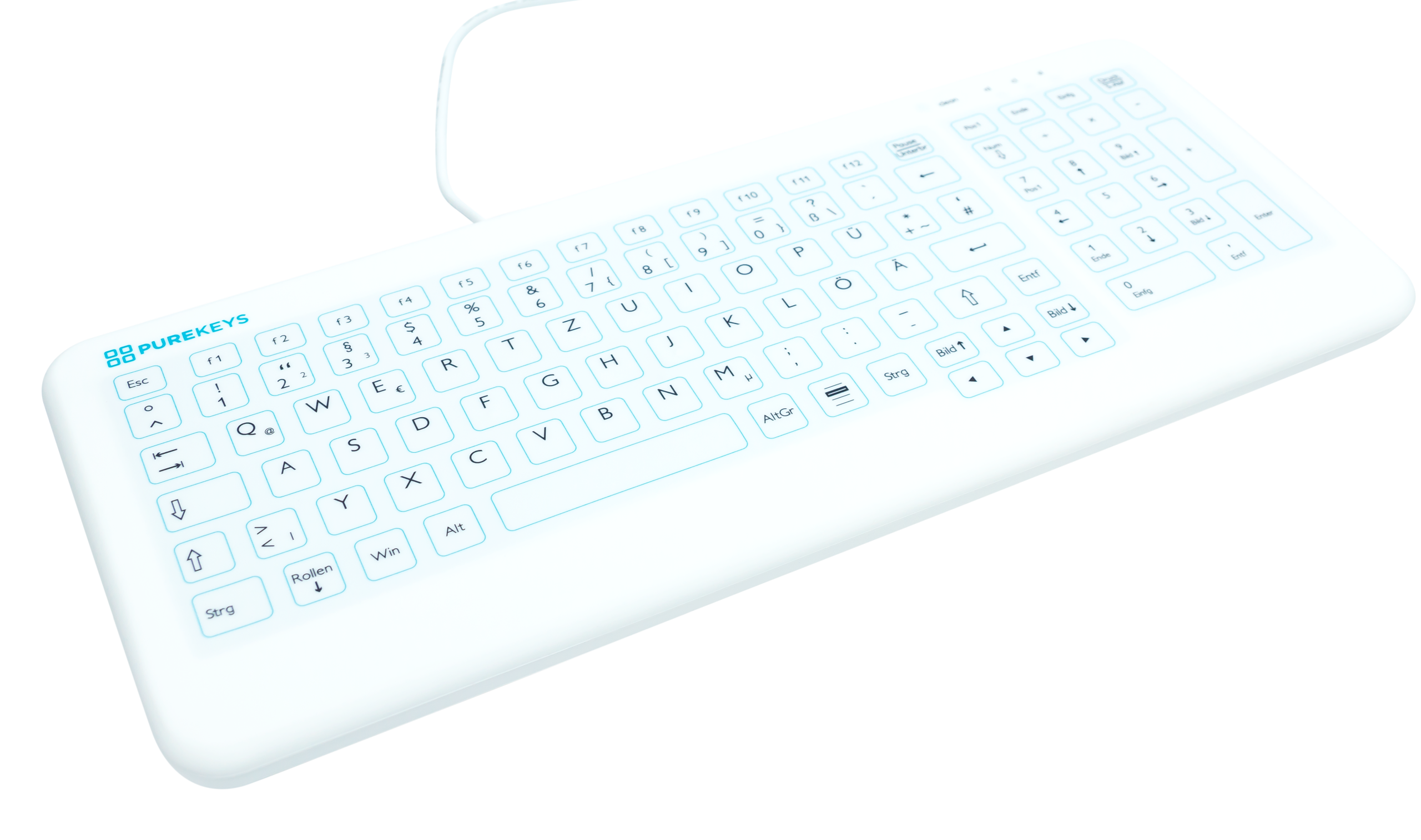
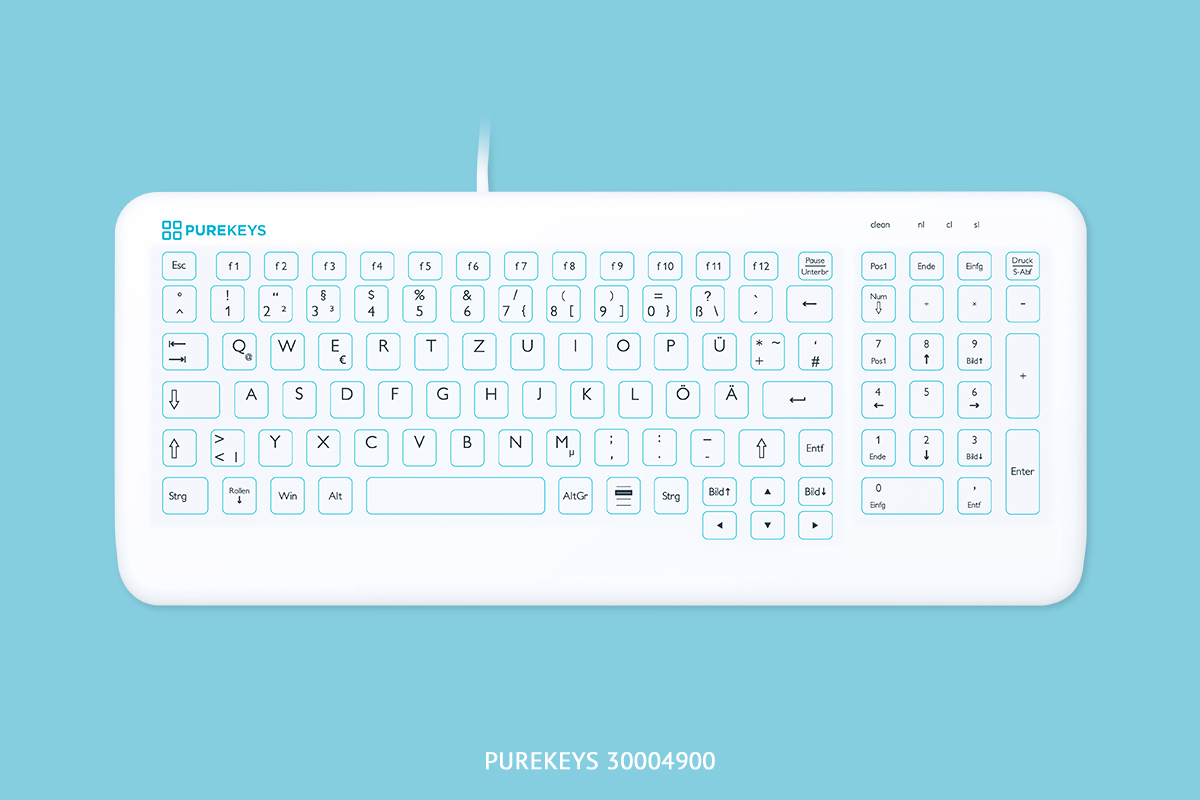
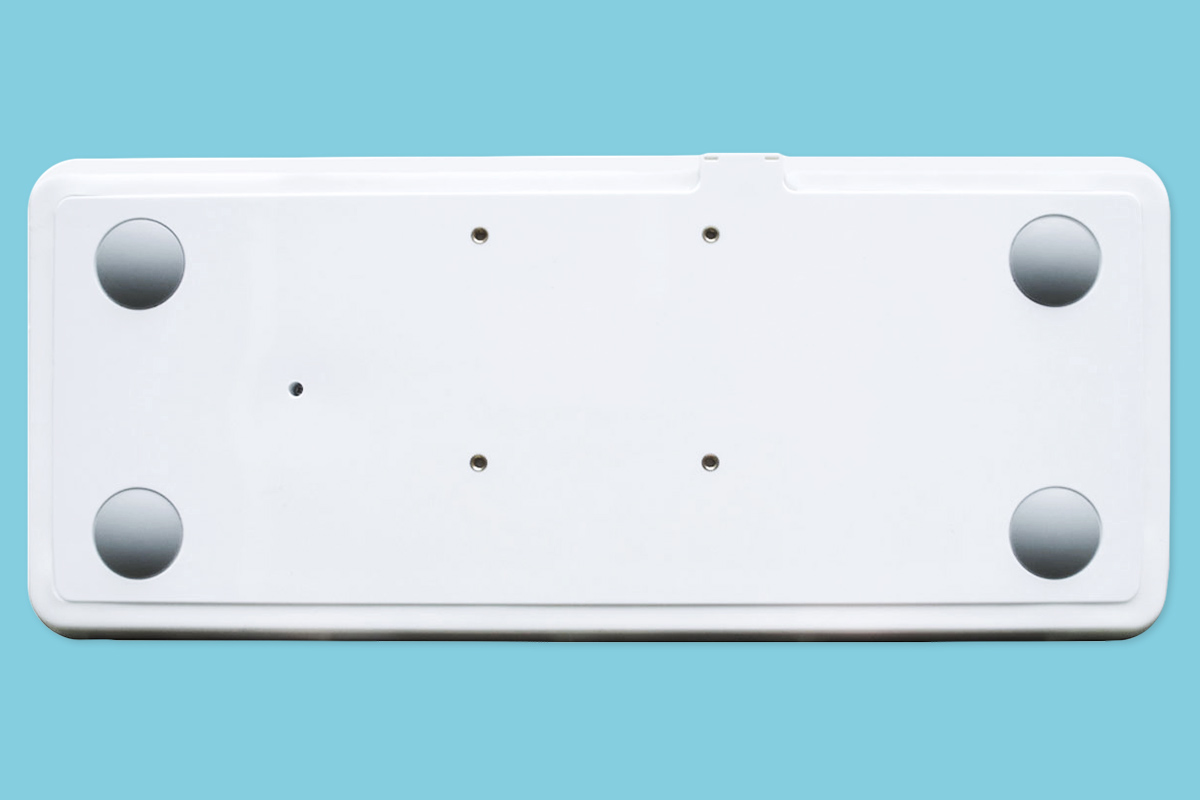
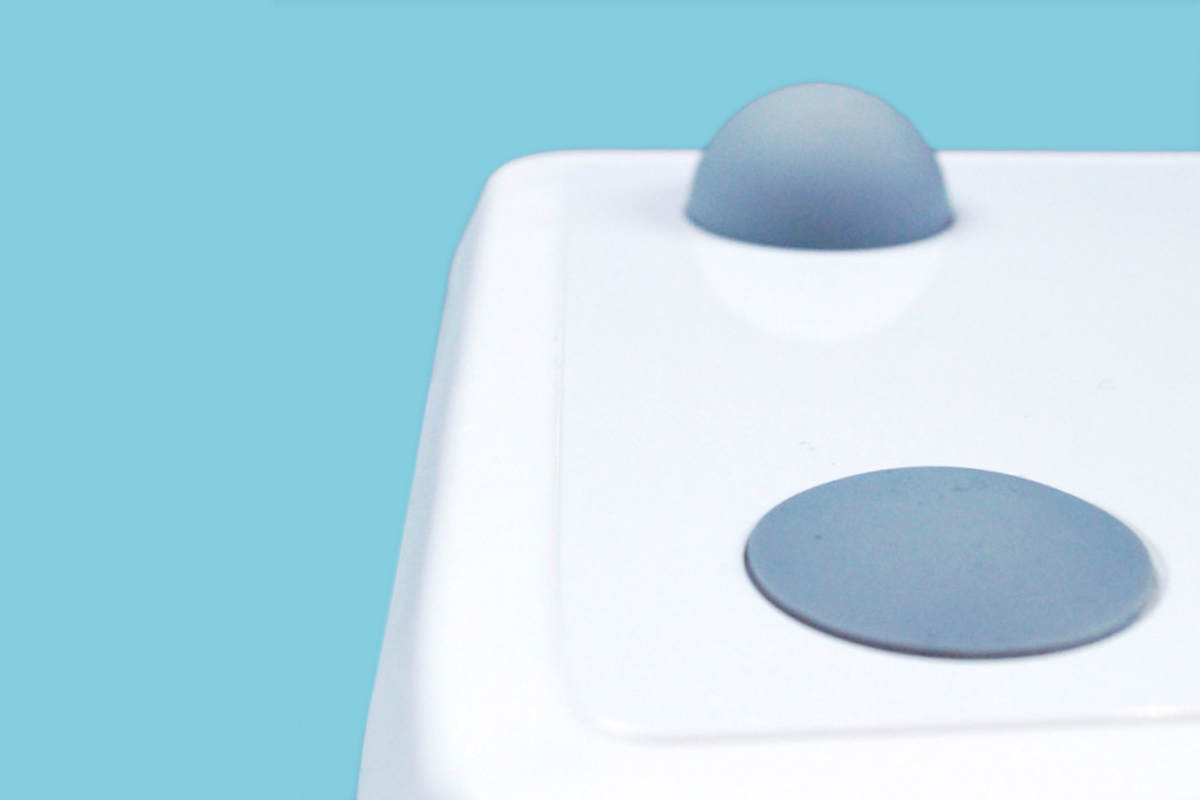
The particularly flat Purekeys 300 has VESA mounting points on the back.
With a height of just 2 centimetres, it can be integrated into suitable mounts, equipment trolleys and technical workstation solutions, or stored in a keyboard drawer to save space. The height and typing angle can be adjusted using the pads provided.
Both models feature a sealed, disinfectable surface made of a flat silicone matrix, tactile keys and an IP66 protection rating.
Yes, if you’re unsure which Purekeys model is right for your workplace, please feel free to contact us. We’ll help you choose the right keyboards, hygiene mice and accessories.
The more precisely you describe the workstation, the easier it will be to narrow down the most suitable solution. It is helpful to provide details of the area of use, the available space, the preferred connection type, the operating system, the cleaning routine and the number of workstations.
Please feel free to contact us if you would like to test Purekeys.
Contact
We are here to help with any queries you may have regarding Purekeys.
You can find disinfectable Purekeys computer input devices at specialist retailers, both online and in-store, or here on this website under ‘Order’.
Troubleshooting
News, user stories and specialist topics
Find out more about Purekeys in practice, new products, trade fairs and topics relating to keyboard hygiene, disinfectable input devices and hygienic computer workstations.
-
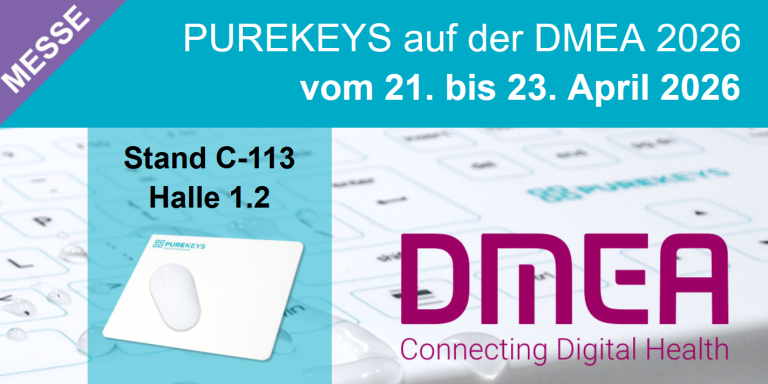
DMEA 2026 – Purekeys shines a spotlight on the digital workplace in hygiene-sensitive areas
DMEA 2026 in Berlin: Purekeys shines a spotlight on the digital workplace in hygiene-sensitive areas Digital processes in the healthcare sector stand or fall on the workplace. Software, interfaces and data flows are only part of the solution. In day-to-day practice, it is often the hardware that determines whether documentation can be carried out quickly, securely and hygienically….
-
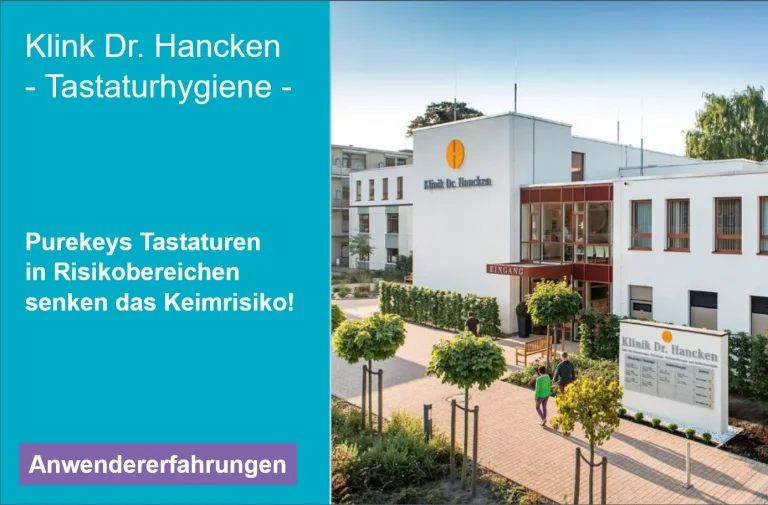
Dr Hancken Clinic: Purekeys keyboards reduce the risk of germs!
Dr Hancken’s Clinic uses Purekeys hygiene keyboards. In 2018, Dr Hancken’s Clinic in Stade decided to install 47 hygiene keyboards from Purekeys. The keyboards are primarily used in the hospital’s inpatient high-risk areas. Silvia Bamberg, the clinic’s hygiene officer, said: “Looking back, we are very satisfied…”
-
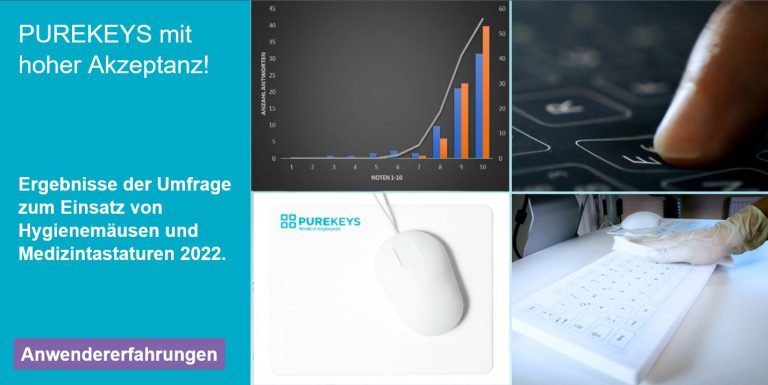
PUREKEYS User Survey 2022 – High levels of satisfaction with disinfectable keyboards and computer mice
The 2022 Purekeys survey reveals high user satisfaction. The disinfectable Purekeys keyboard and the wipeable mouse have been very well received: On a scale of 1 to 10, 87 out of 92 users gave scores of 8 to 10 when asked about their overall satisfaction with the PUREKEYS input devices. At the end of 2022, the company abaVital, in collaboration with agilDialog…
Do you have any questions about Purekeys products, or would you like further information?
We are here to help with any queries you may have regarding the handling, use and selection of the right Purekeys devices.